RDC From a Client VM To a AD DC
Objective
You will see a method of connecting a Virtual Client Machine to a centralised Active Directory Domain Controller
Outcome
By The End you should be confident in how to set up a simple VM and connect to the domain controller using Remote Desktop Connection.
This is my first project of many. This is a series linked to a program I am making that should in theory help with basic ICT troubleshooting without a physical engineer needing to assist. Why I have linked this to servers will make more sense later. But for now, this is about how a Virtual machine that runs a standard windows OS can use “Remote Desktop Connection” to access the server.
The first thing I needed to do was download a version of VMware. Why did I use VMware? My current Version of Windows 11 Wouldn’t let me use Hyper-V in admin tools, I also didn’t want to use VirtualBox since I was going for more industry standard software’s so VMWare it was 😊.
I found a nice little collection of VMWare Player Pro archives that I used to download VMWare 17.5.2 When I had that downloaded my ISO files for the server and client and then booted them up.
My first step was to Install all the updates on the server and make a snapshot of the fresh install. After this I then started installed Active Directory from the Server Manager
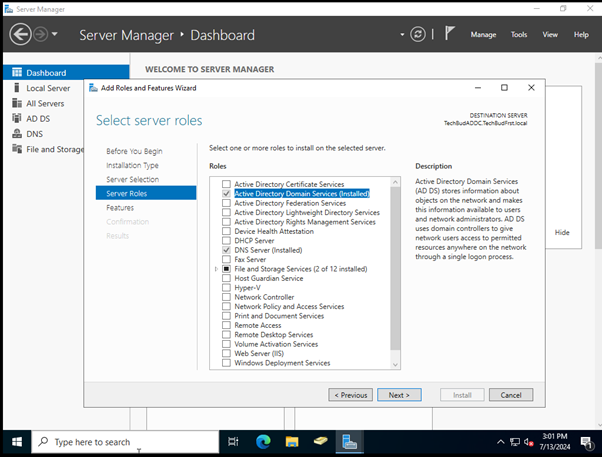
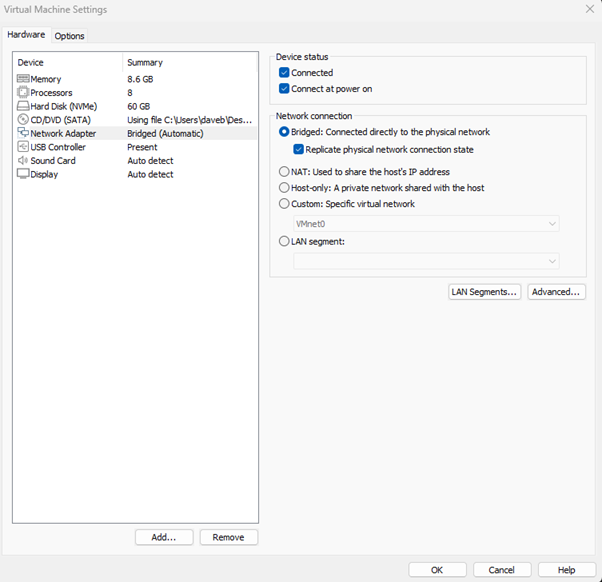
I went through the bootup which asked me various questions about the Domain Controller I was creating. When I was done, I set the network settings inside VMWares VM settings to Bridged so I could use my Physical LAN connection as the VMs LAN connection. I needed my VMS to be on the same network so I could use RDC and remote into the server on the Client VM. I also made sure to tick “Replicate Physical Network Connection”. Once this was done and I tested with an ipconfig that my VMs were using the same Subnet I could then allow for inbound RDC rules. This was also set up on the server, to do this I enabled Remote Desktop.
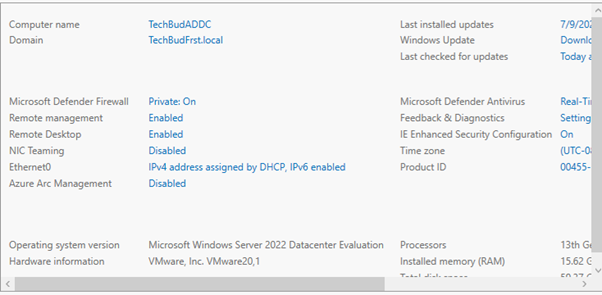
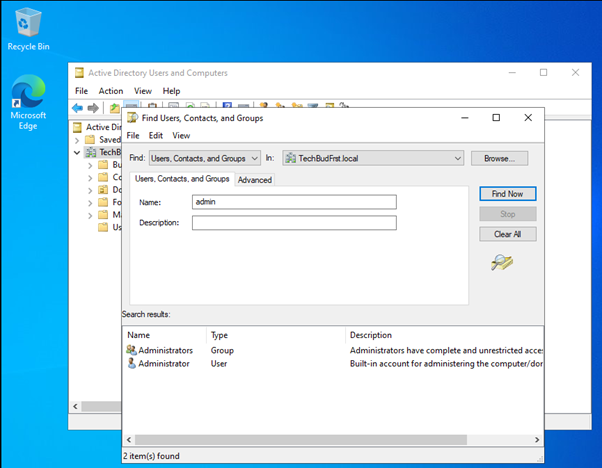
After this I launched Active Directory users and groups. I already had a user for the server which was the built-in admin but if someone wanted to sign into my server for whatever reason I need to make them an account. So here is my admin account for the server, now all I did was create a new user in active directory.
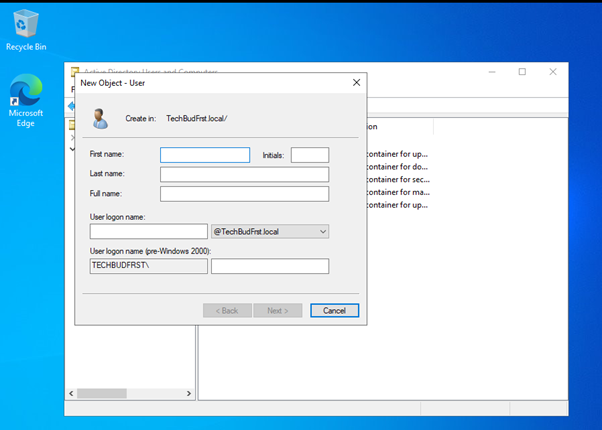
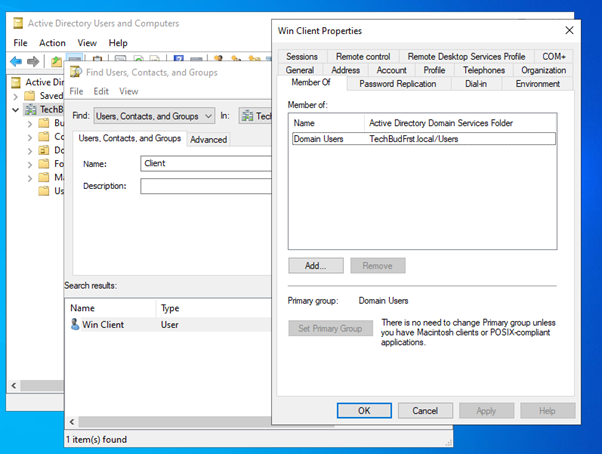
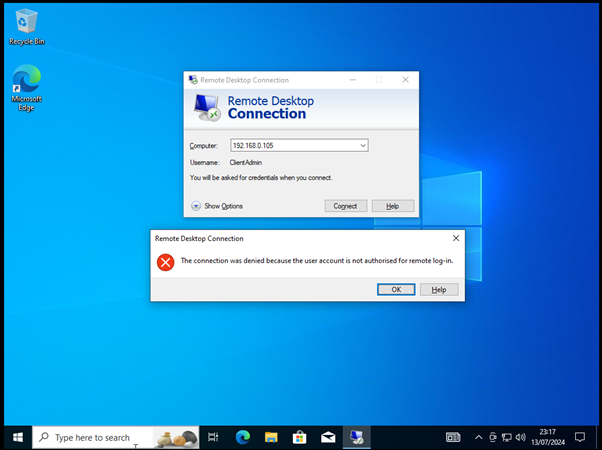
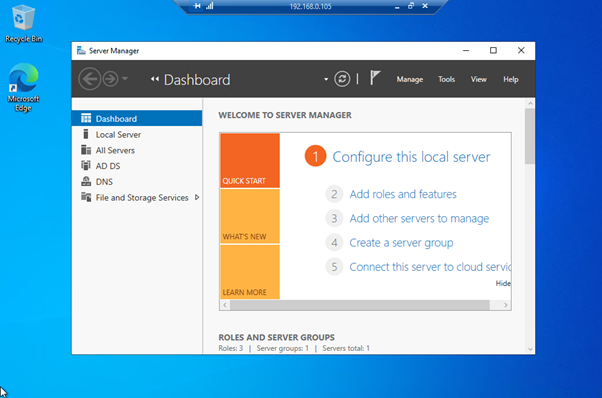
Viewing the new account, I needed to add the group “Domain Admin” this would be added to the user account I created. Without this I cannot RDC into the server due to access level. If I tried now, I’d get this prompt on my Client VM. Please note that I created a VM Client by making a new Virtual Machine and using a standard Windows ISO. This can be found here. So since I would get this error I added domain Admin and remoted in.
That was all for this instalment. A few things to expect from the future. This Project is made for me to have a test lab environment for AD and play around in the windows servers. My goal here is to make various ICT related projects that would be seen within an on-prem infrastructure environment. A few things I plan to add next are:
- Allowing the client machine to attach itself to the server domain, this for me would just be best practise so I can isolate the machines and also, I can manage those machines it’ll also allow to make further instalments about policy, security and automated installation.
- Changing the access levels, allowing some VM clients to be admins, others can only view and have the main admin that has full access. This way I can split the access up so not everyone can access everything when remoting into the server.
- I also plan to start making a shared drive which in turn I can then connect it to a VM where I plan to save files from the program I was talking about earlier. It’ll all make sense soon enough.