EntraID Lifecycle Management PT 1
Scenario
As an IT administrator it’s all to familiar to have a joiner, mover and leaver framework imbedded into your companies infrastructure. A good user lifecycle management ensures smooth onboarding, staff collaboration and an offboarding process.
This series shows the overview of how EntraID introduces their own IDP framework while allowing for a hybrid environment for companies stuck on prem.
Aim
This post shows how EntraID allows admins to create user accounts, the process that is undertaken and what to look out for.
Step into Entra
EntraID is Microsoft’s Identity Provider (IdP). A strong tool user to create, manage and update Identity objects. This can range from user accounts, user devices, Applications and more. This piece focuses on the user accounts, it’s the first identity a member of staff will obtain entering a new role. The account is normally created by a member of the ICT team, applying group access, application access and all regards for the new staff member to do their role.
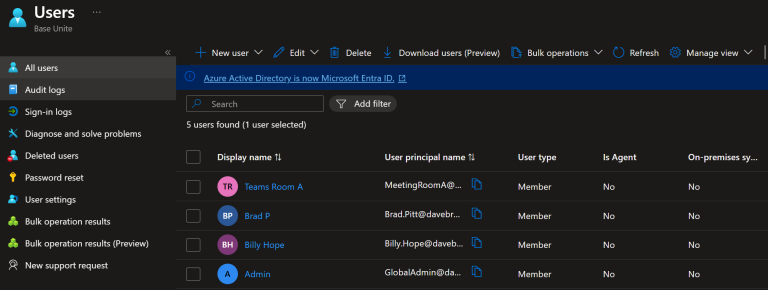
In the EntraID portal admins woul go to the ‘Users’ section to create a user account. Admins can select New User to create an account in the IDP.
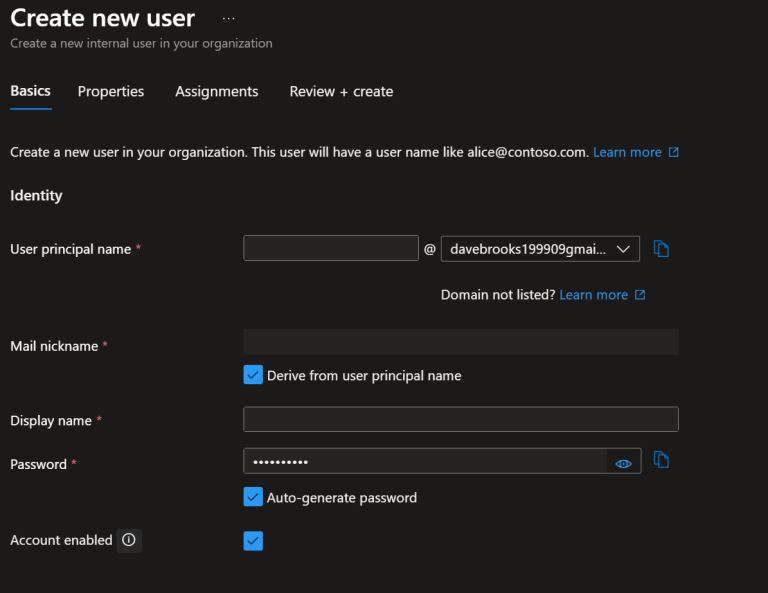
User creation focuses on the basics:
- UPN
- Mail Name
- Display Name
- Password
- Account Status
These fields are mandatory to fill in to create an account, without them you’ll fail to proceed. I made an account for Bobby Jones, a Landscaper in the Environmental department. All these subtle details can be applied in the properties tab which I aim to use later for more in-depth security role assignment.
For now the below shows a very basic view on the user I have created manually in EntraID. creating this user will allow me to further manage the account.
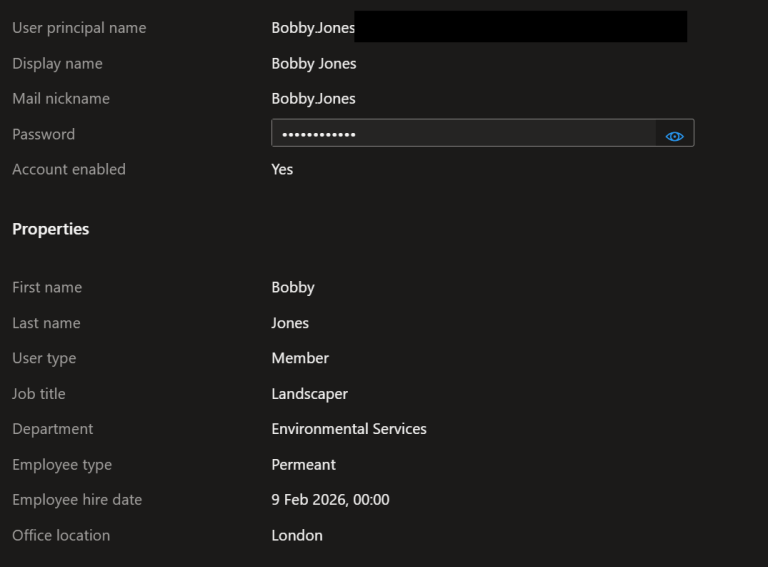
Bobby now has a blank account that admins can assign group access, administrator roles, licenses and security management options. For now I’ll just manually add a security group to Bobby’s account that is assigned to allstaff.
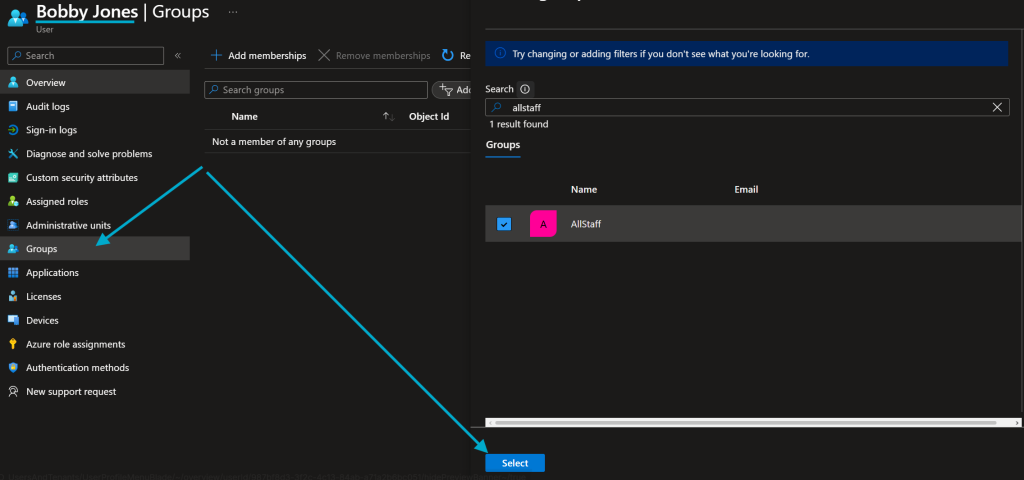
The Above shows a very basic and manual approach to how admins would create a user. Although easy in a lab practise this can and would become much harder in a corporate setting. Admins may not always have the time to manually create each account. Automation plays a big part in all lifecycle management in todays modernized environment. Saving admins time to focus on other tasks. EntraID provides ways to automate the user set up. One of them are through scripts. Below is a way admins could uterlise powershell to create user accounts using Microsoft Graph.
## Variables
$message = 'This script allows you to create a new user in Entra ID,
please fill in as many details as possible.'

##Connects the Graph API to the current session. If prompted to login, do so.
Connect-MgGraph -Scopes 'User.ReadWrite.All'
## Display message in the console regarding what this script does
Write-Output $message
## Wait time before printing next command in the console.
Start-Sleep -Seconds 5


$PasswordProfile = @{
    Password = '<makeAUserPassword>'
    ForceChangePasswordNextSignIn = $false
}

New-MgUser -DisplayName 'Powershell Created User' -PasswordProfile $PasswordProfile -AccountEnabled
-MailNickname 'psuser' -UserPrincipalName 'psuser@<yourdomainname.com>'
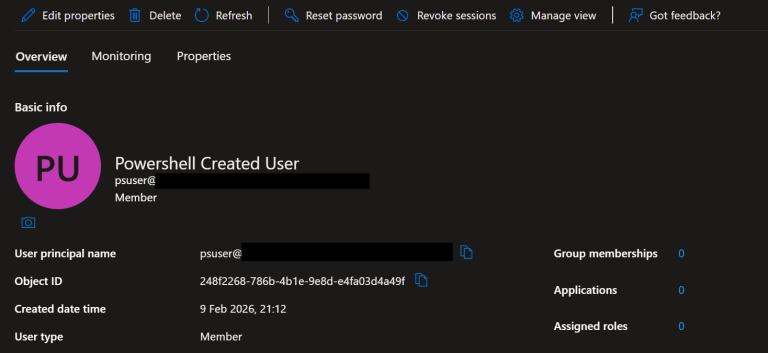
This powershell script is a very basic way of making a user account from your desktop without using the EntraID Graphical User Interface. As long as you authenticate into your EntraID tenant this script will create a very basic user account.