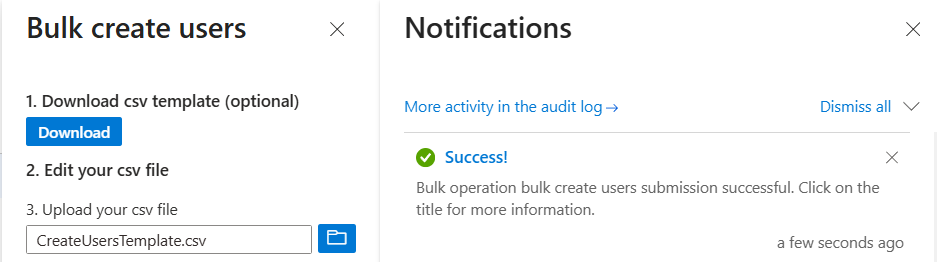
I used a CSV spreadsheet which I populated with user’s data that I wanted to create in EntraID. The bulk import function was used to import the csv template, the audit logs show the successful import.


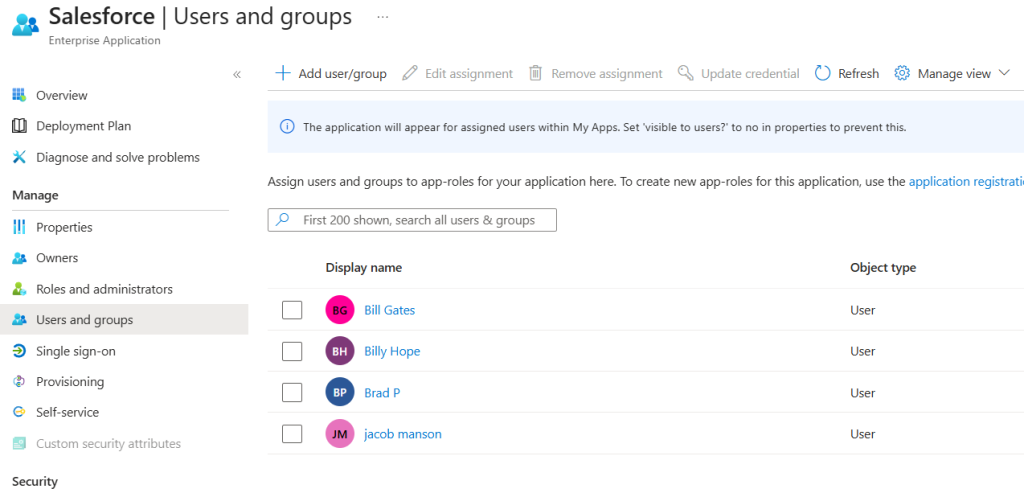
Nancy has been added for this demo as since Craig has left sales I want to show how an access review can be leveraged to revoke specific access for Applications and Groups. If the Lifecycle for the mover flow or even the power automate flow from Part 3 never revoked Craigs old access then an access Review could be leveraged to revoke this type of access.
It’s important to note that EntraID does have a feature to access review Catalogs. In part 3 I did make Catalogs to segment different types of access. This feature is currently still a ‘Preview’ feature so I felt it was best to use Access Reviews for Groups and Apps. You can also assign an access review to an access package in the “Access Package Policy”. The same Principles would still apply.
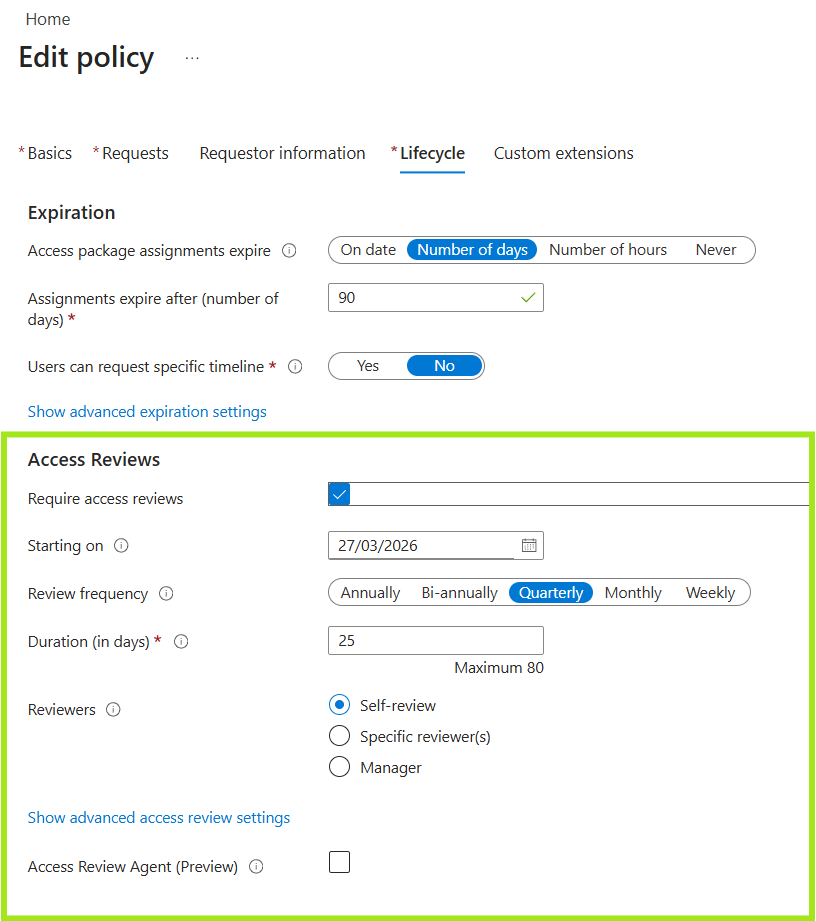
The Access Review I created is as follows:
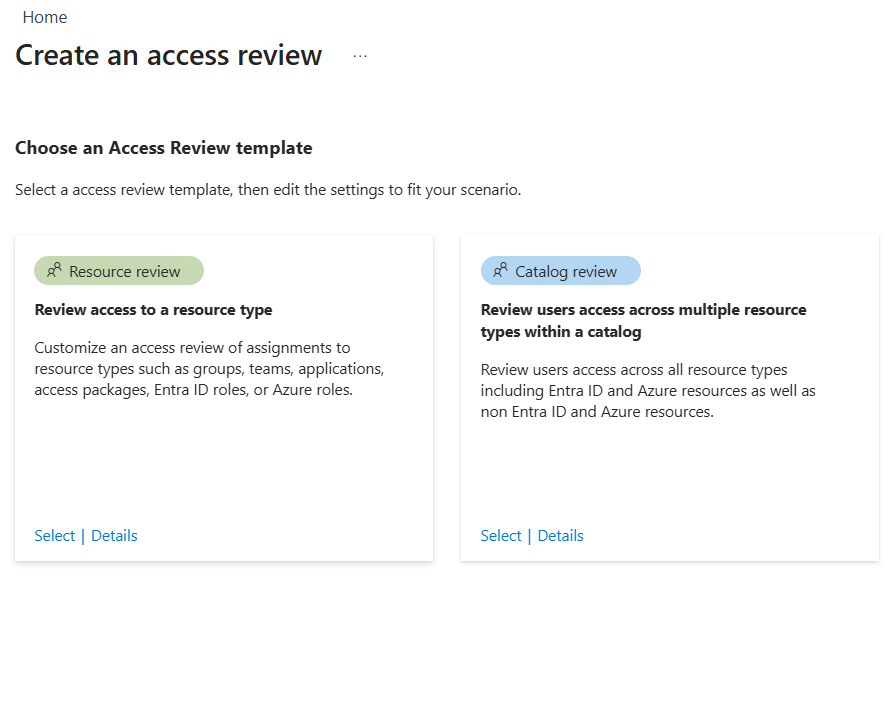
I selected an access review to a resource type. Assigning the Salesforce application as the scope. This is a single stage review as Nancy will manage who continues to have access to the app. Good thing about access reviews is if a user does not review the access within the framed duration then we can automate what happens.
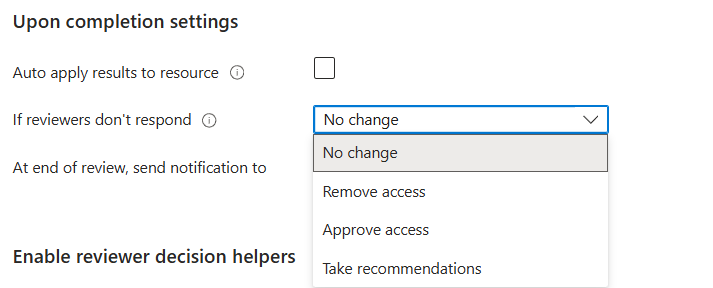
Access reviews also enable admins to send notifications to users and groups when the review ends. Just like a reviewer will get an email reminder to complete their review.
Now that the review is made I can use Nancy’s account to show the review in action.
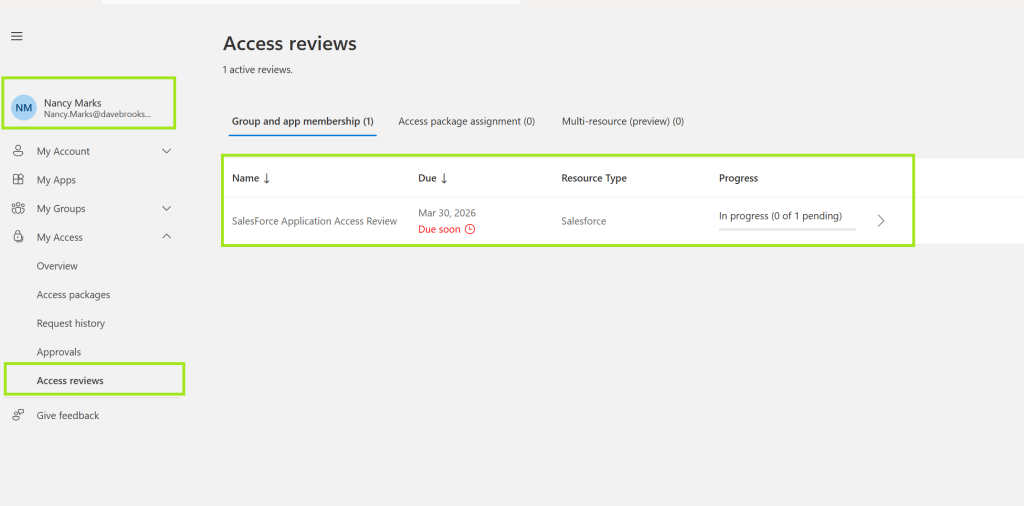
The review is now live and Nancy can review the application access, deciding to revoke or permit the current access.
Craig has direct assignment to the application and Entra is suggesting since Craig has not signed in for a while that their access should be revoked. 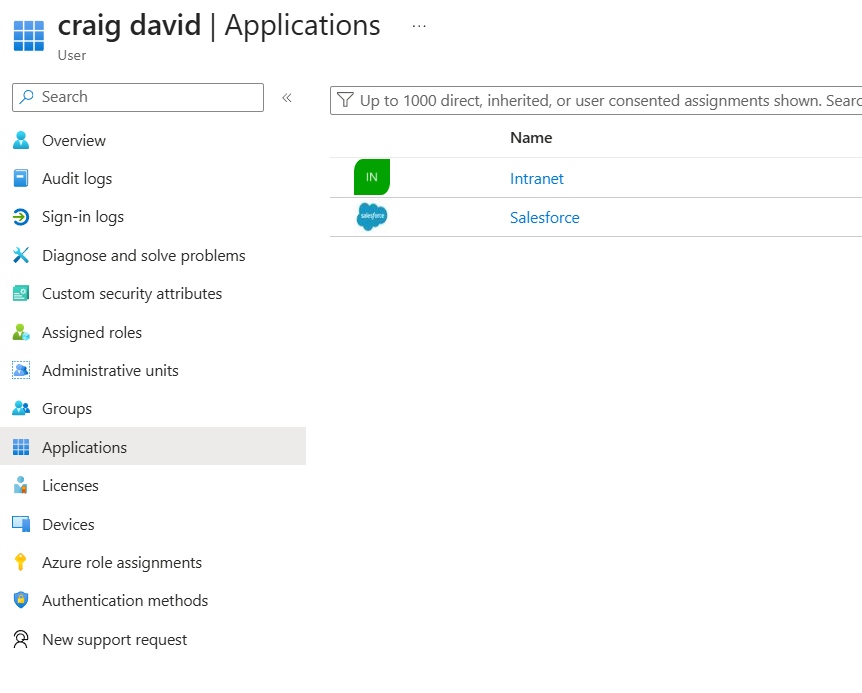
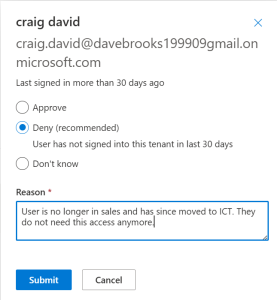
Now Nancy has submitted this to Entra and the access review has detected it, when the review end date and time is met the review will then apply the revoke of access set by the reviewer. So now Craig no longer has access to the Salesforce App and Nancy has given justification to this.
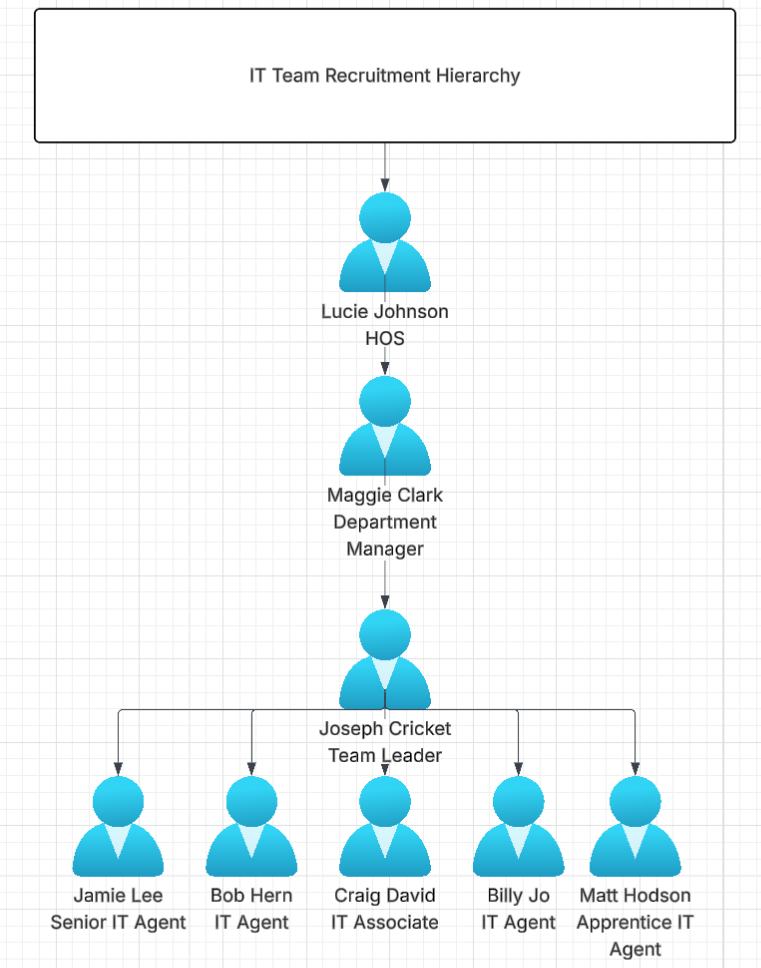
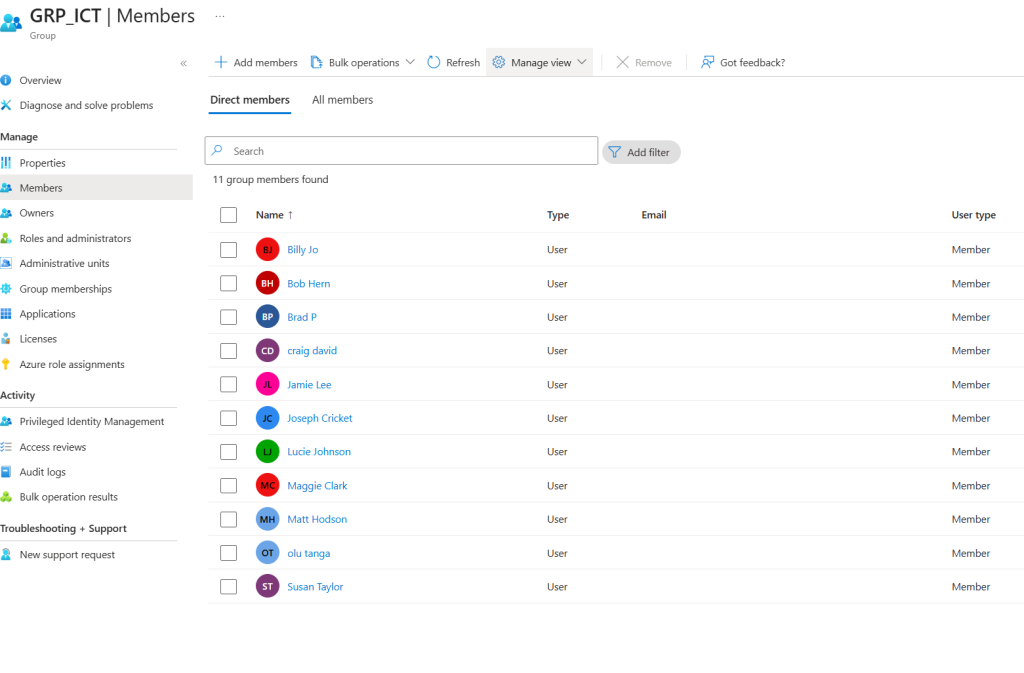
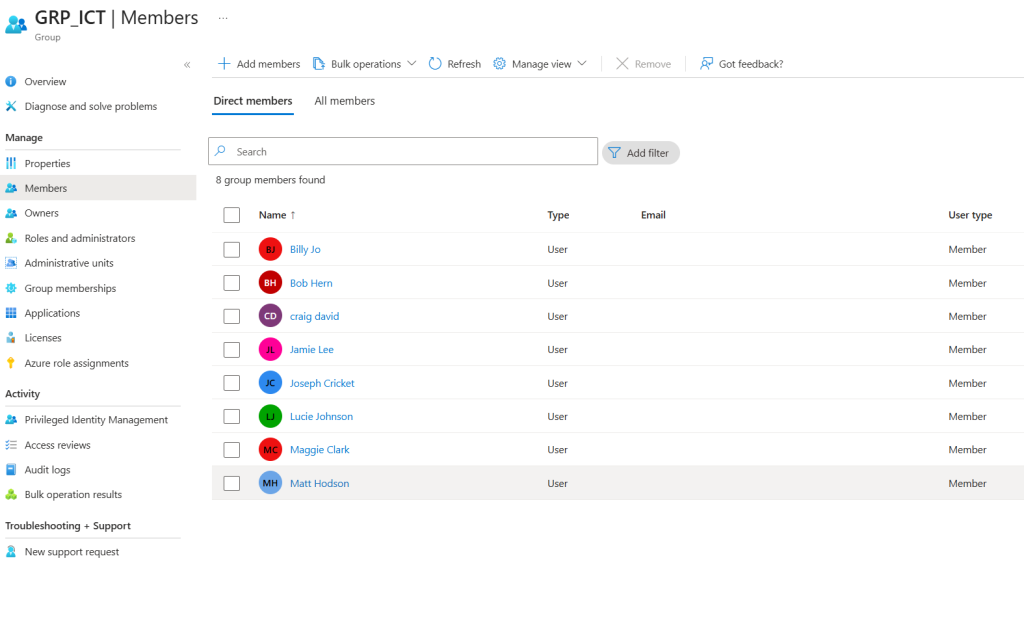
As shown above I created a Micro ICT Hierarchy showing different levels to the ICT team. Access reviews are great for enforcing a governance layer to the JML process by making sure no staff have stale access over the lifecycle of their user account. Nancy managed an access review independently for an Application but access reviews do have the functionality to be multi staged. So a manager can approve and then their manager would then also need another approval. It allows for multiple reviewers to work together to decide access.
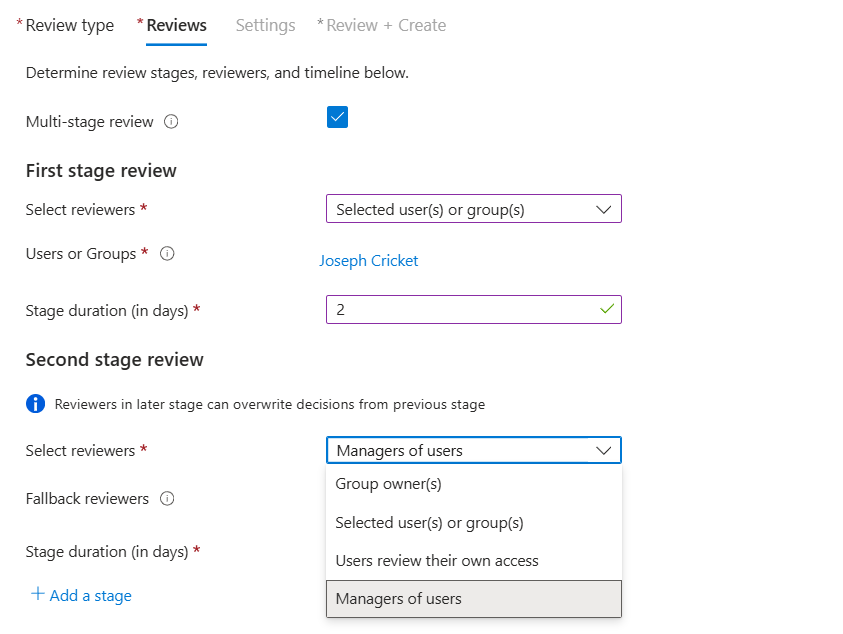
Entra allows you as an admin to decide if the review process is simple or a lot more complex. Perhaps there would be a situation where you are reviewing access to a multi department group due to a collaboration. You can select specific users from the tenant to be at a certain stage of the review or just assign the managers manager if it stays in a single team/department. This is another reason why it’s important to keep attributes populated.
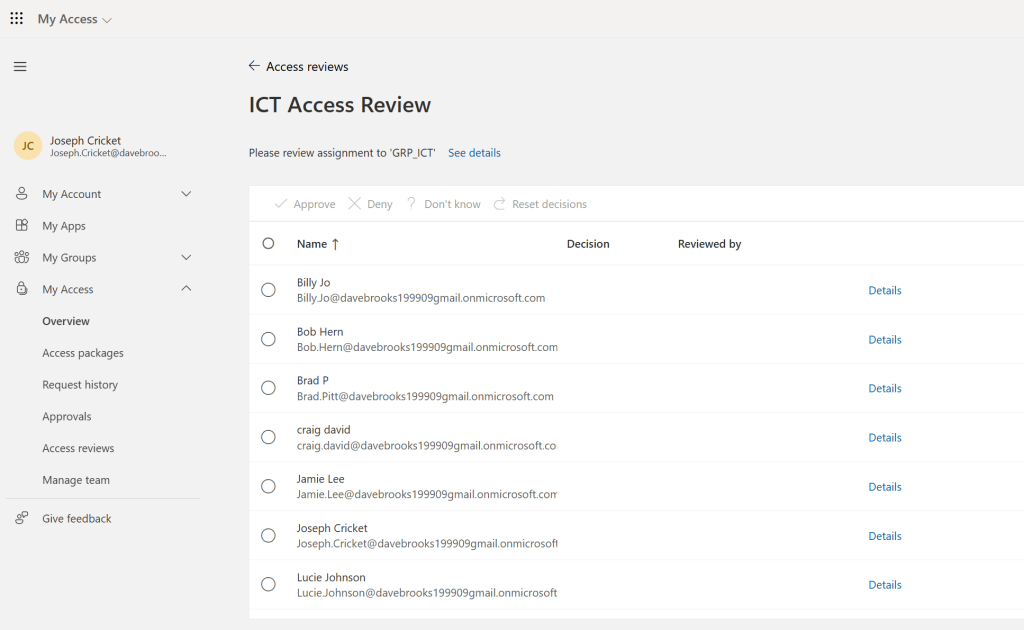
In My Access Joseph is the first stage reviewer who can approve or deny specific access to the ICT group. Joseph will approve the team access and revoke everyone else.
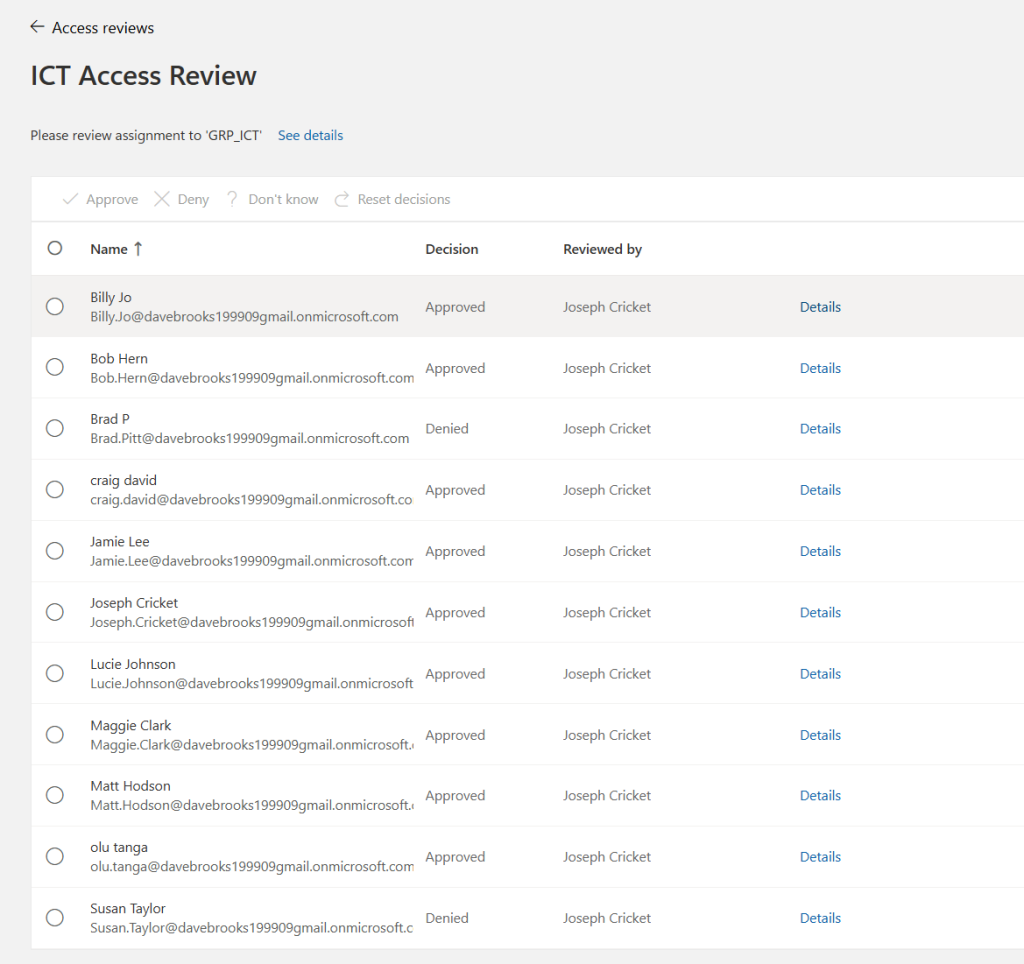
Important to note that the stages will last their entire duration, stage 2 does not start until the duration date and time is met. Then stage 2 starts.
The second stage of the access review ill allow the next reviewer to see the first stage justification and outcome but the second stage review will override the previous stage.
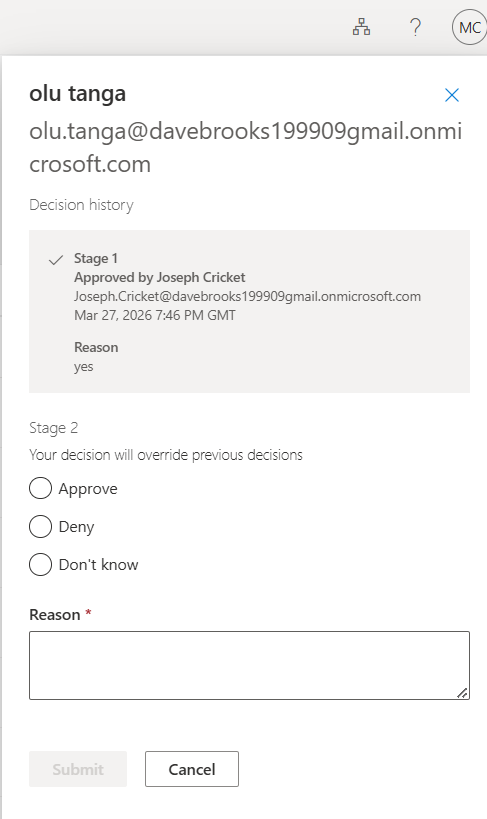
Maggie has approved the ICT team Hierarchy however noticed that Olu has been approved in error so Maggie can deny this and have Olu removed from the ICT group.
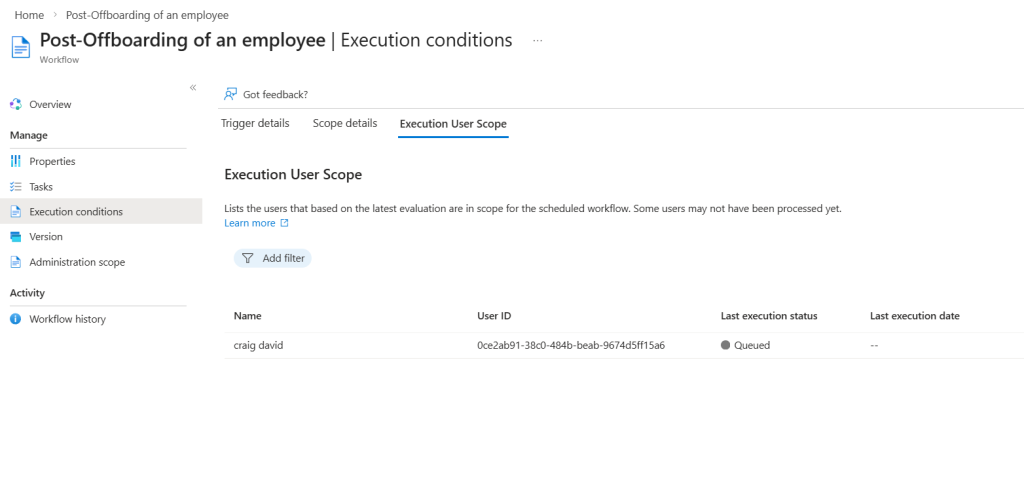
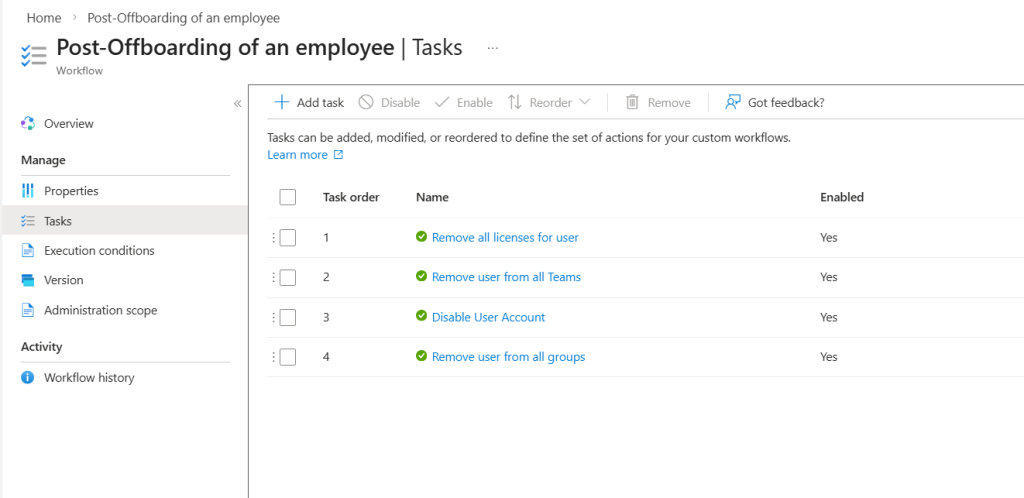
Craig now wants to leave the company, he’s worked in sales and ICT and found another job in another company. So here is the leaver flow that controls offboarding.
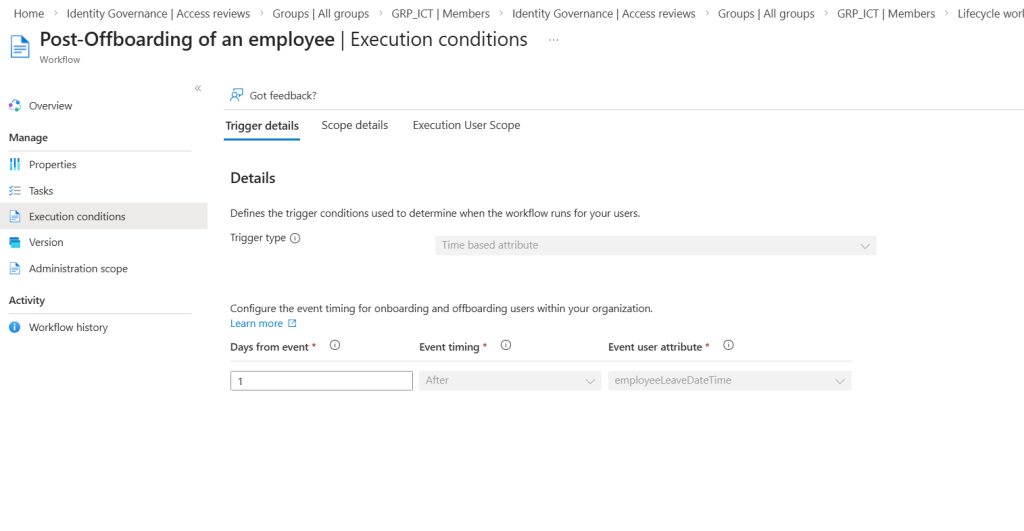
The flow detects a property assigned to accounts called ‘ EmployeeLeaveDateTime ‘ this attribute isn’t editable inside the GUI view of entra. it needs to be done through Powershell Graph.
After the attribute has been assigned the user will be added to the flow. Then the following tasks will run to make sure all access is revoked.