Previously, I explored how administrators would manually create a user or use on prem directories to sync them to Entra. Using dynamic attribute assignment to assign user access. This piece shows how administrators can automate onboarding tasks using Entra Governance Lifecycle Workflows to onboard a user and oversee the departmen change of a member of staff.
When a new starter joins an organisation, the process should be simple and stress free. Companies may sometimes struggle with this due to multiple factors. Devices not being ready, tickets not being raised sooner, engineers are backlogged. The last thing on your mind would be access assignment and making sure it’s the correct access. Especially if you’re following Just Enough Access security principals, it’s especially easy to assign access by mirroring another member of staff.
Instead a user can join a tenant in EntraID and a lifecycle workflow will wait and see if the user meets admin set attribute rules. Meeting these rules executes a series of Tasks for the onboarding process. Below is a script I’ve refined from part 1 to make user accounts in my Entra tenant.
##Connects the Graph API to the current session. If prompted to login, do so.
Connect-MgGraph -Scopes 'User.ReadWrite.All'
#region Functions
#Functions to use in main CMDLET below
function DoesValueExist {
param (
[string]$value,
[string]$property
)
$filter = "$property eq '$value'"
$existingUser = Get-MgUser -Filter $filter -ErrorAction SilentlyContinue
if ($null -ne $existingUser) {
Write-Output "The value '$value' already exists for property '$property'."
return $true
}
else {
Write-Output "The value '$value' is available for property '$property'."
return $false
}
}
#Function prompts user for details and sets them to create user ID in Entra
function Get-BasicUserDetails{
$firstName = Read-Host "Enter First Name"
$lastName = Read-Host "Enter Last Name"
$jobTitle = Read-Host "Job Title"
$departmentName = Read-Host "Department"
$managerNameStatic = Read-Host "Managers Email"
$managerFind = Get-MgUser -Filter "userPrincipalName eq '$managerNameStatic'" -Top 1
$manager = $managerFind.UserPrincipalName
#Converts above data to useable outside function calls
return [PSCustomObject]@{
GivenName = $firstName
LastName = $lastName
JobTitle = $jobTitle
DepartmentName = $departmentName
Manager = $managerFind
}
}
function New-IdentityProfile {
param(
[string]$FirstName,
[string]$LastName,
[string]$Domain
)
# Normalize names
$FirstName = $FirstName.ToLower().Replace(" ","")
$LastName = $LastName.ToLower().Replace(" ","")
$counter = 0
do {
if ($counter -eq 0) {
$upn = "$FirstName.$LastName$Domain"
$mailNick = "$FirstName.$LastName"
}
else {
$upn = "$FirstName.$LastName$counter$Domain"
$mailNick = "$FirstName.$LastName$counter"
}
$existingUser = Get-MgUser -Filter "userPrincipalName eq '$upn'" -ErrorAction SilentlyContinue
if ($existingUser) {
Write-Host "UPN $upn already exists. Trying another..."
}
$counter++
} while ($existingUser)
$displayName = "$FirstName $LastName"
return [PSCustomObject]@{
UserPrincipalName = $upn
MailNickname = $mailNick
DisplayName = $displayName
}
}
#EmployeeID Generator
function UniqueEmployeeID {
do
{
$baseEmployeeID = (Get-Random -Minimum 0 -Maximum 99999).ToString('00000') # Make random ID
$checkallIDs = Get-MGUser -Filter "employeeId eq '$baseEmployeeID'" # Check to see if random ID is already in use
if($null -ne $checkallIDs) # If the ID is already in use, loop will run again to generate a new one
{
Write-Host "Employee ID $baseEmployeeID already exists, generating a new one..." # Write to console that the ID is already in use and a new one will be generated
}
}
while ($null -ne $checkallIDs) # If The ID is not in use
Write-Host "EmployeeID is" $baseEmployeeID # Write the unique Employee ID to the console
return $baseEmployeeID # Return the unique Employee ID to be used in the user creation
}
function password-Management{
$adminChoice = Read-Host "Do you want to set an auto-generated password for the user? (Y/N)"
if ($adminChoice -eq 'Y') {
$generatedPassword = -join ((33..126) | Get-Random -Count 12 | ForEach-Object { [char]$_ }) # Generate a random password with 12 characters and 2 non-alphanumeric characters
Write-Host "Generated Password: $generatedPassword" # Display the generated password to the admin
$securePassword = $null
}
else {
$securePassword = Read-Host 'Enter A Password For The User' -AsSecureString # Prompt the admin to enter a password and convert it to a secure string
$generatedPassword = $null
}
return [PSCustomObject]@{
AdminChoice = $adminChoice
GeneratedPassword = $generatedPassword
UserEnteredPassword = $securePassword
}
}
#endregion
#Where CMDLETS Start
# Stored Vars
$domainName = '@davebrooks199909gmail.onmicrosoft.com'
$companyName = 'Miami PTC'
$employeeStartDate = Get-Date
#Store Message
$message = 'This script allows you to create a new user in Entra ID, please fill in as many details as possible.'
## Display message in the console regarding what this script does
Write-Output $message
## Wait time before printing next command in the console.
Start-Sleep -Seconds 5
# Get the static user details stored in the function
$staticUserDetails = Get-BasicUserDetails #store hash data inside a variable
$staticUserDetails.Manager | Format-List ID,DisplayName,UserPrincipalName #write the manager details to the console to verify the correct manager was found
$employeeID = UniqueEmployeeID #generate unique employee ID and store it in a variable
$identity = New-IdentityProfile `
-FirstName $staticUserDetails.GivenName `
-LastName $staticUserDetails.LastName `
-Domain $domainName
#Call password choice function and store the results in a variable to be used in the user creation
$passwordmgmt = password-Management
#store hash data to pass into the user
$password= if($passwordmgmt.AdminChoice -eq 'Y'){
$passwordmgmt.GeneratedPassword
}
else{
$passwordmgmt.UserEnteredPassword
}
$passwordProfile = @{
Password = $password
ForceChangePasswordNextSignIn = $true
}
# Create the user
$entraUserNew = New-MgUser -GivenName $staticUserDetails.GivenName -Surname $staticUserDetails.LastName -UserPrincipalName $identity.userPrincipalName `
-DisplayName $identity.DisplayName -MailNickname $identity.MailNickname -JobTitle $staticUserDetails.JobTitle -Department $staticUserDetails.DepartmentName -AccountEnabled -PasswordProfile $passwordProfile `
-EmployeeId $employeeID -CompanyName $companyName -EmployeeHireDate $employeeStartDate
#Assigns manager if manager is not assigned
#Need to find out why on prem user's cannot be set as managers
if (-not $staticUserDetails.Manager)
{
Write-Output "No manager assigned, skipping manager assignment"
}
else
{
Write-Output "Assigning manager..."
Set-MgUserManagerByRef -UserId $entraUserNew.Id `
-BodyParameter @{
"@odata.id" = "https://graph.microsoft.com/v1.0/users/$($staticUserDetails.Manager.Id)"
}
}
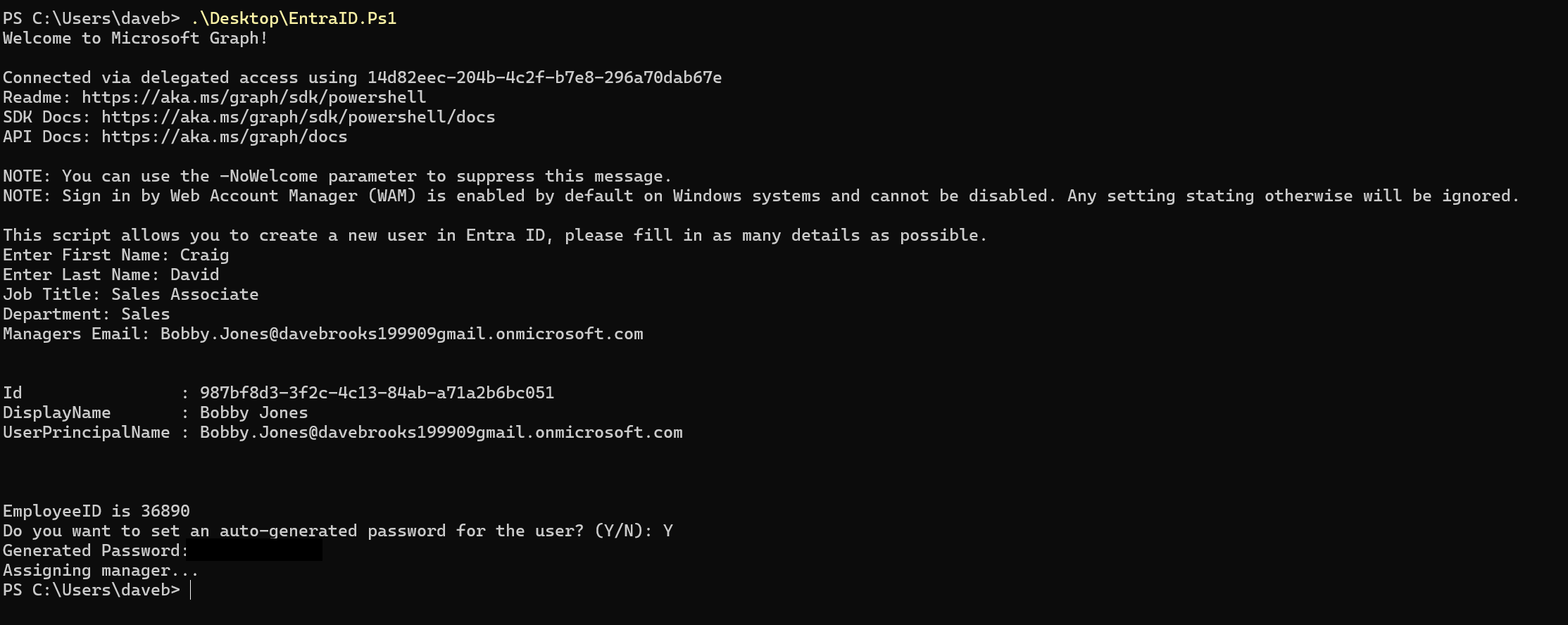
With the above script I created a Entra Member to my tenant. Craig joined the team in Sales and requires their All Staff and Sales Team Access. The below cmd console shows the entraID script being run creating a user account for my entra tenant. The script has been engineered to get user input to assign values to the user attributes.
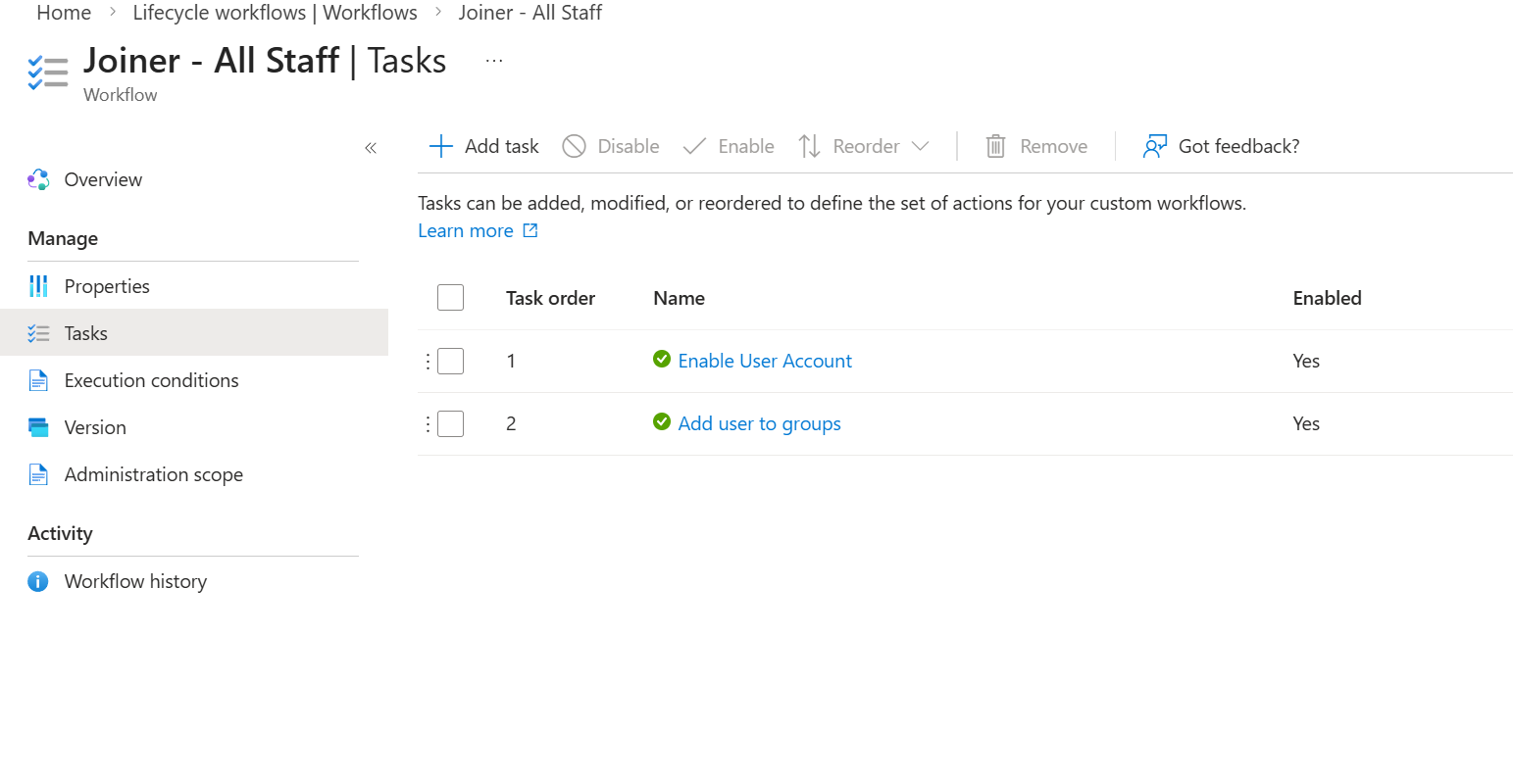
Using Governance Lifecycle Workflows an administrator can pick from pre built templates to create assignment orchestration. Craig is apart of Sales so I created two Lifecycle Workflows. One assigns day one all staff access, a flow that assigns an all staff group to allow Craig to request access to the all staff access package. Another Flow that then assigns Department specific access.
Lifecycle workflows add a finesse to onboarding adding tasks over assignment. Dynamic Groups tend to assign themselves based on property attribute, you can assign licenses or apps based on their assignment. Lifecycle workflows adds the governance cycle, Welcome Emails, Temporary access passes, manager email reminds etc. I’m using a simple condition ‘accountEnabled eq true’ Meaning anyone who is an enabled user in my tenant gets all staff access.
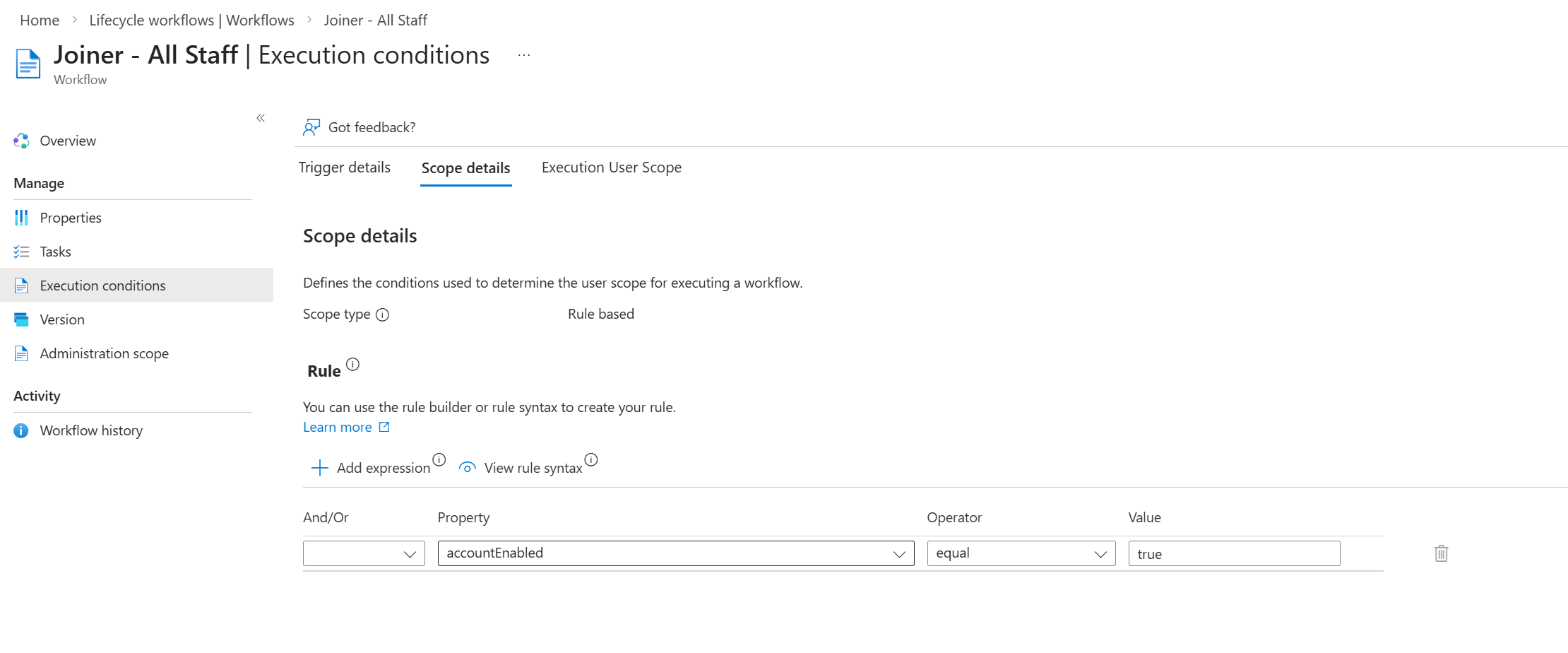
I noticed during the project that the flows only really assign to all new active members instead of assigning to all staff members. I believe this is due to how the conditions are followed. If the account is already enabled and they started before current day then the flow doesn’t consider them in scope. You can use Run On Demand to assign selected users access, however Run on demand ignores rules and dynamic expressions.
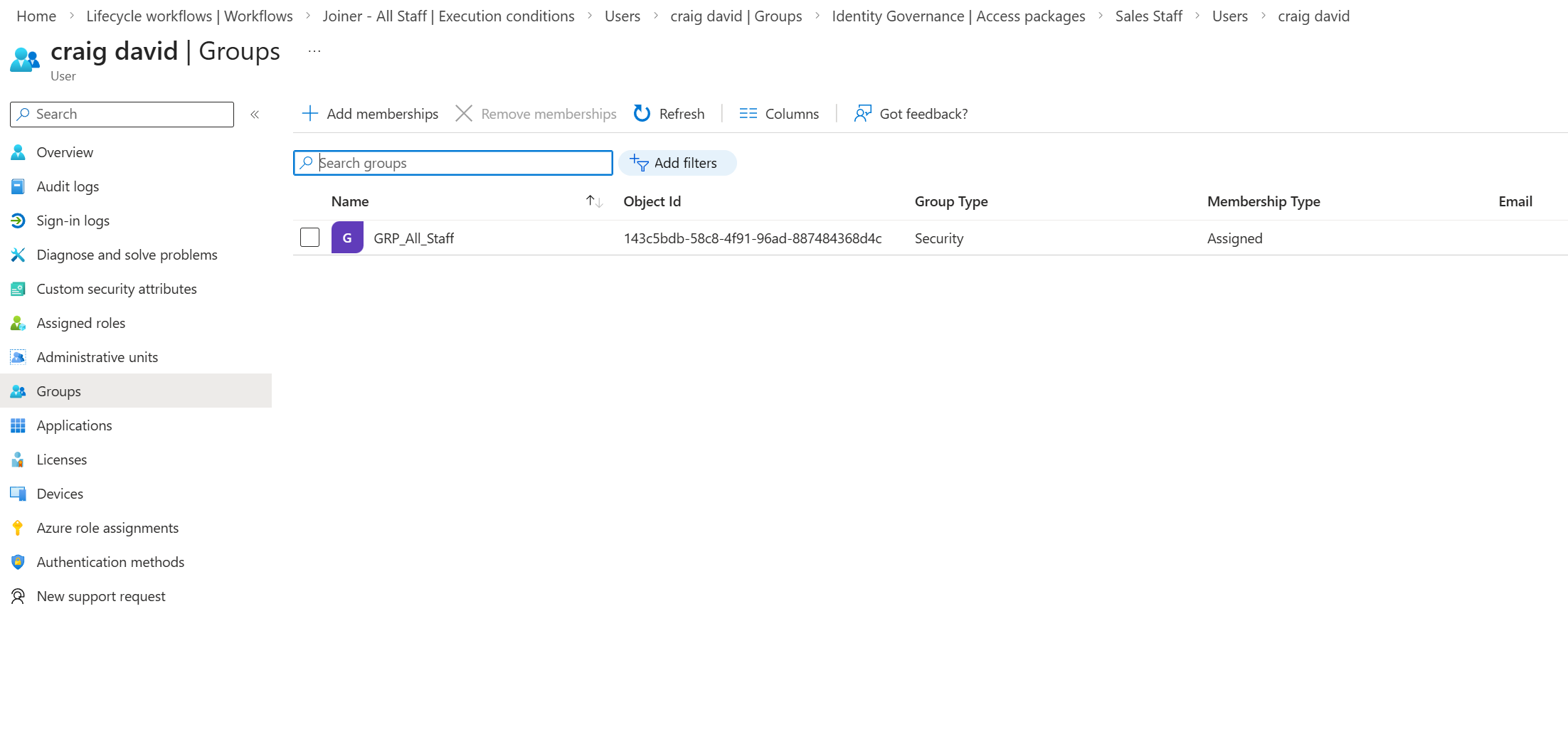
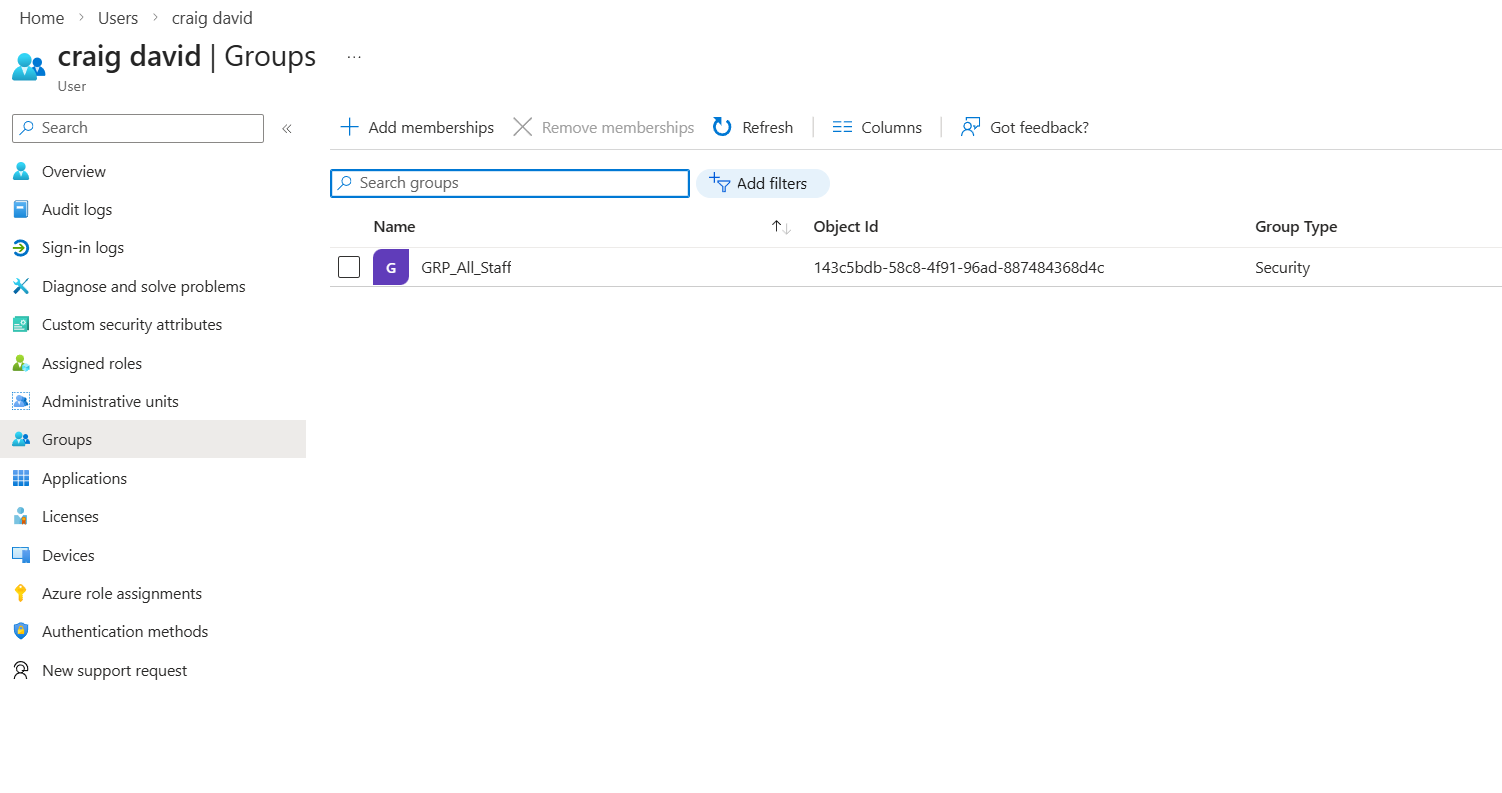
Craig is now added to the All Staff group as the Lifecycle Workflow queued Craig to have tasks run, enabling Craigs account and assigning the shown group. The same outcome will appear for the department specific flow as Craig is apart of the Sales team and the department flow for sales checks against department before assigning tasks to run against the account.
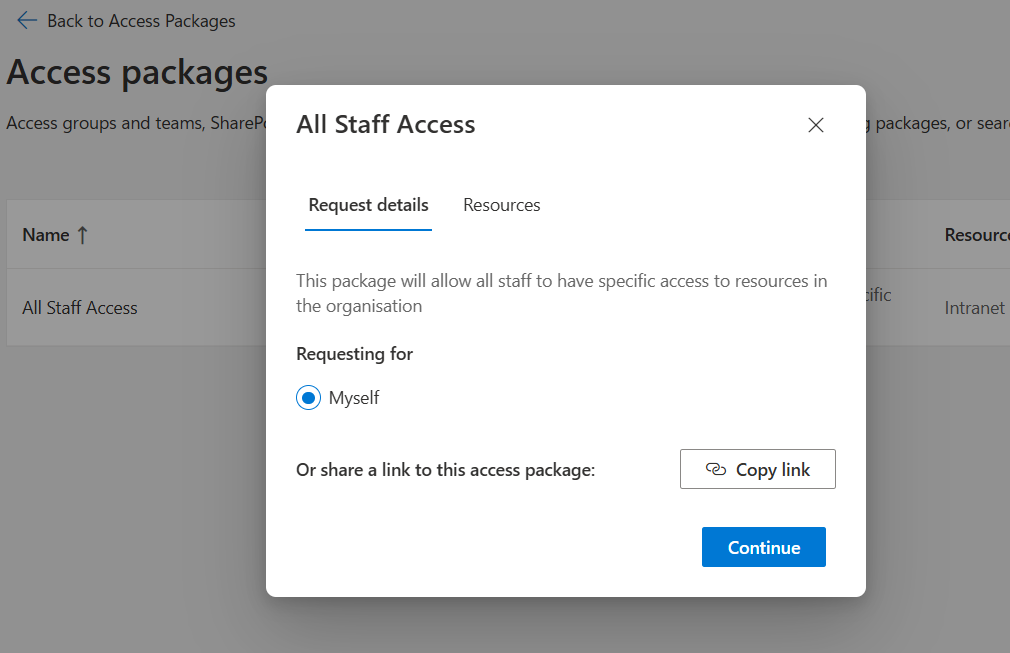
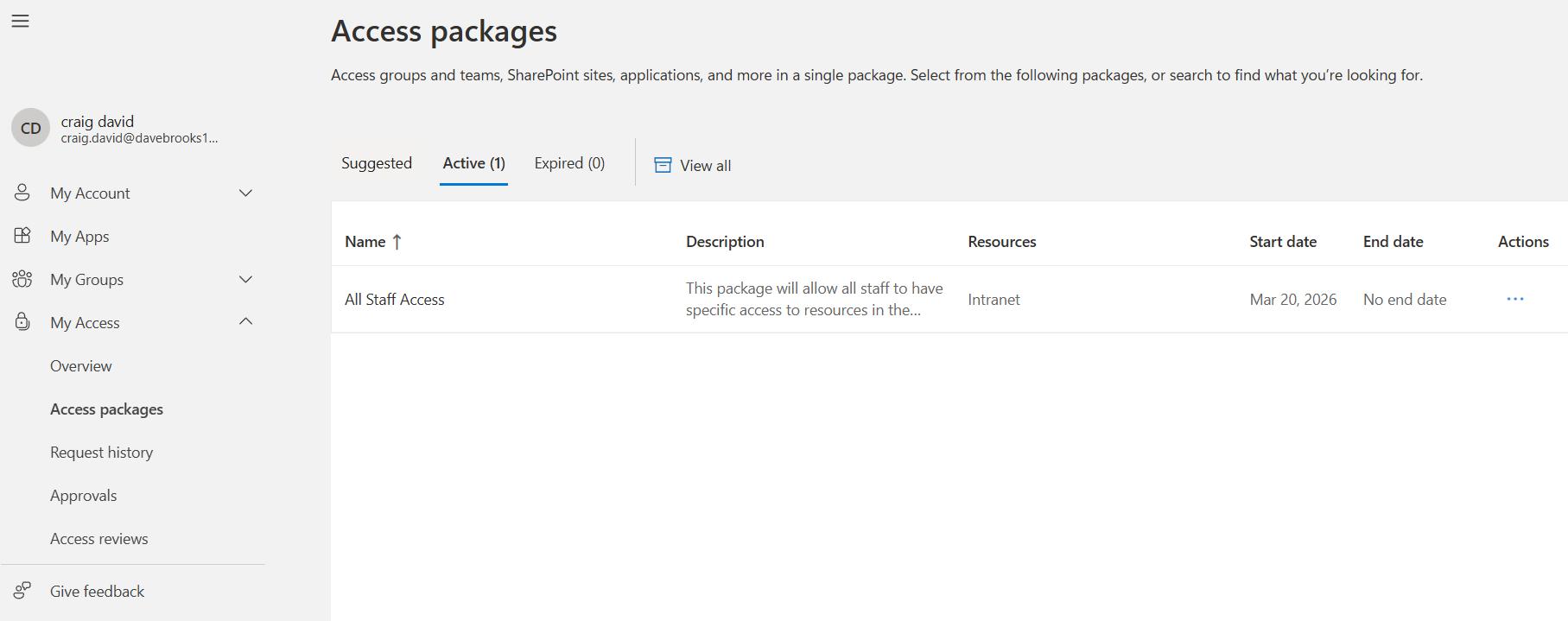
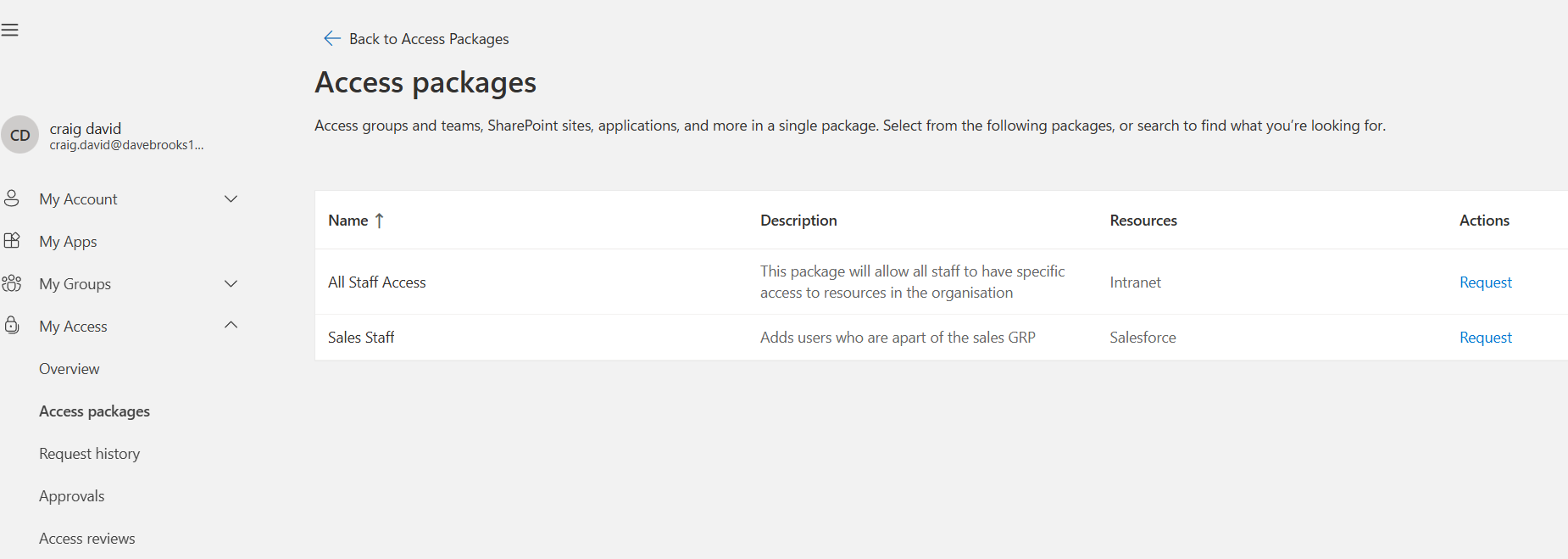
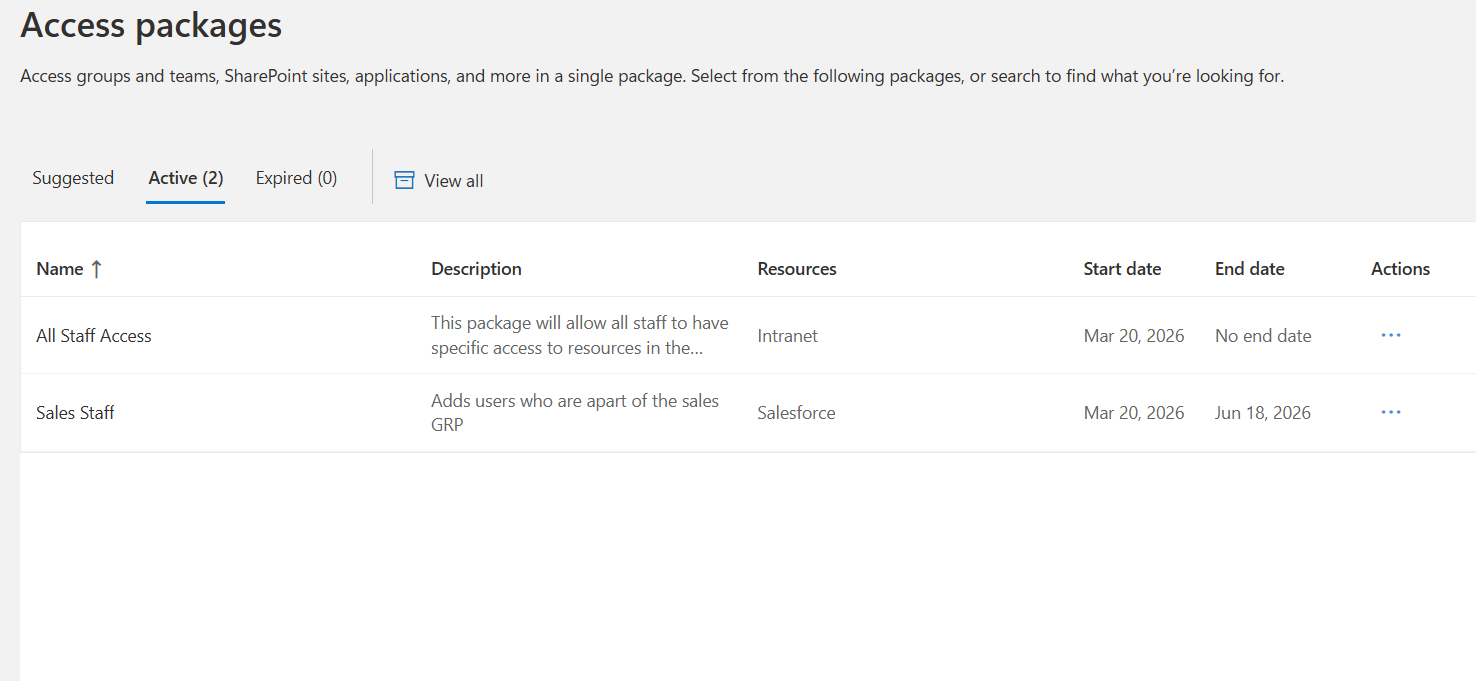
Now Craig has the group assignment they can Go to “My Access” and request access to the All Staff Access package which provides intranet access.
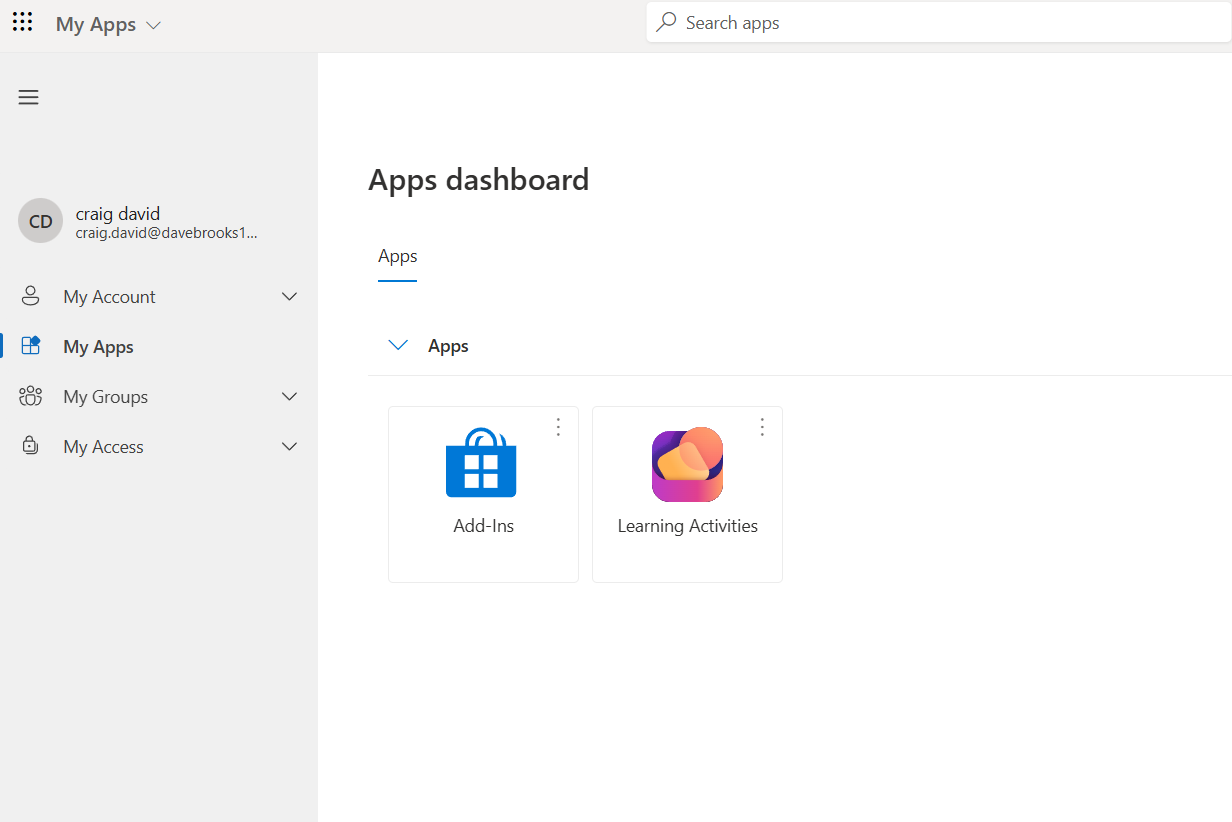
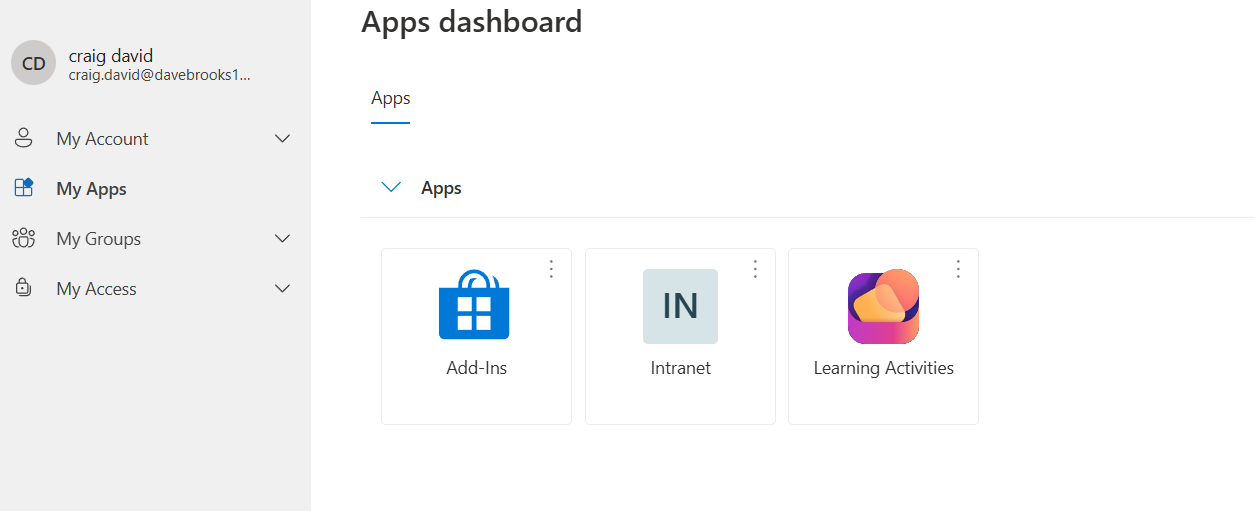
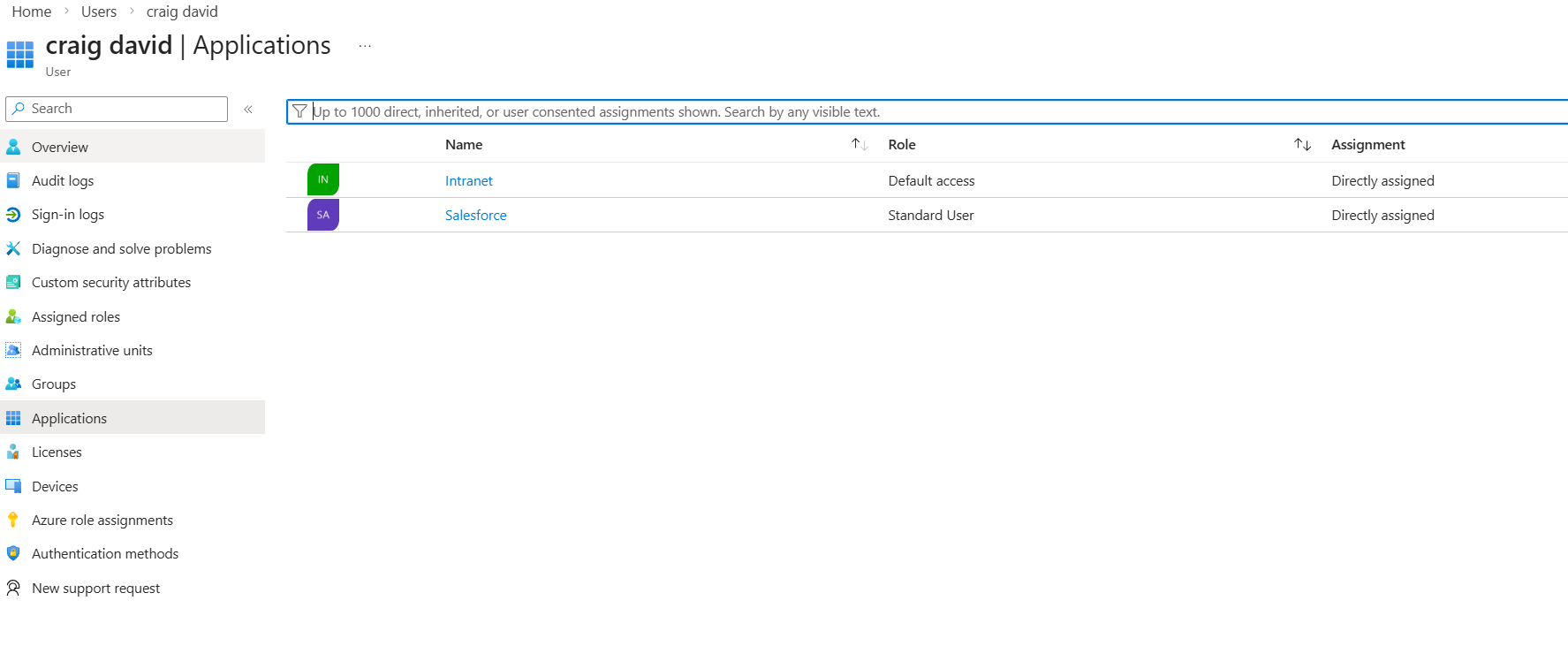
Craig now has basic all staff access and department scope access based on the joiner lifecycle flows. One is department specific looking for anyone in Sales and the other is global so it’s for all new staff that join the tenant. Now Craig has the internal intranet app and sales force assigned to their account.
Now Craig has been working in Sales, the company opens up a new ICT role Craig applies for the job and gets selected. Lifecycle workflows can manage the mover process, more specifically the flow can detect if a attribute has been changed on the user account and then can add a new group to the user’s account giving the new access.
I made a power Automate flow to simulate a manager adding details to a Human Resources system to change Craigs department. From Sales to IT
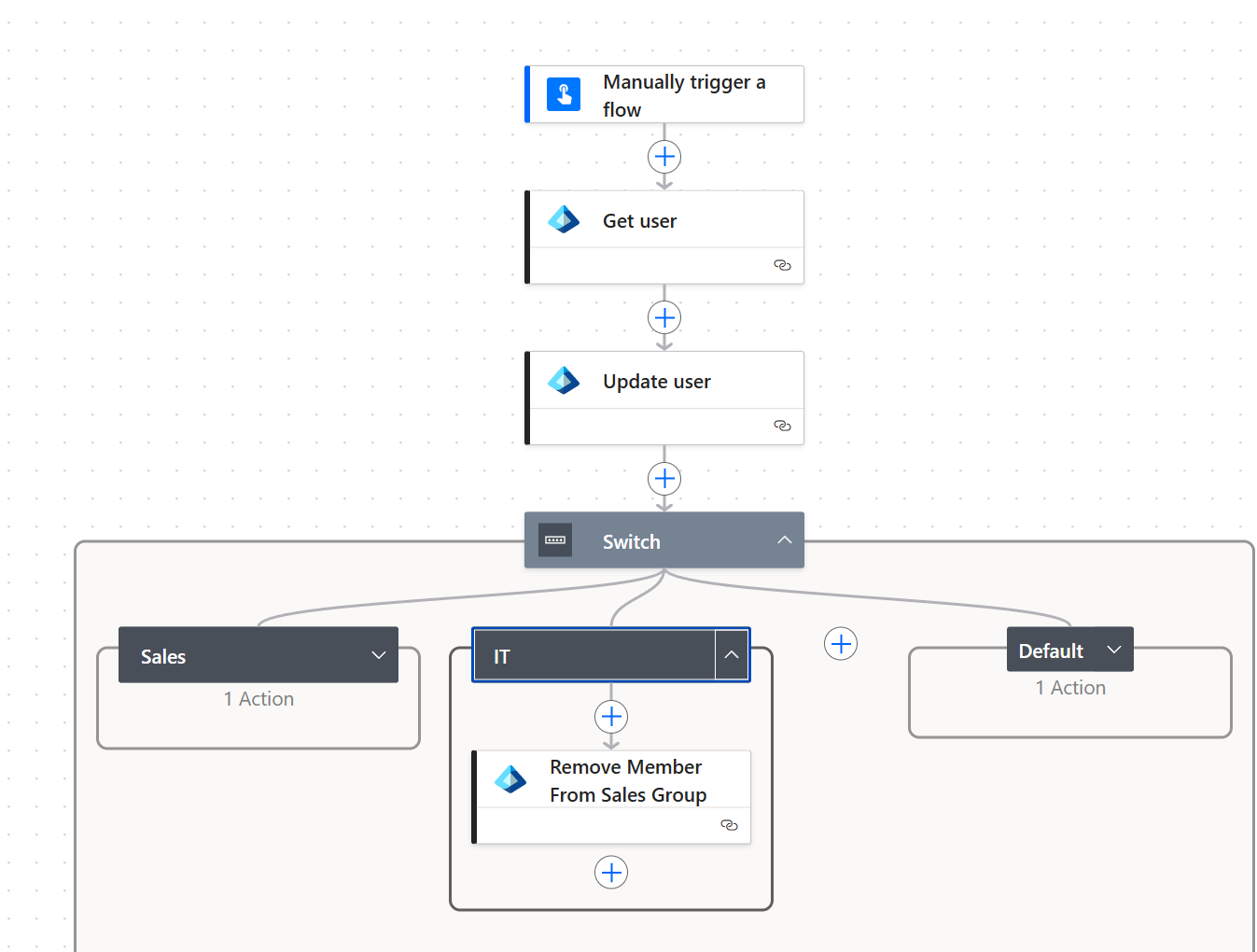
The flow itself gets the user’s details based on variables I have made. It then updates the user’s department based on the information the manager gives. The switch statement then acts as a condition to see if user is moving from IT to Sales or Sales to IT. In this case Craig is moving to IT.
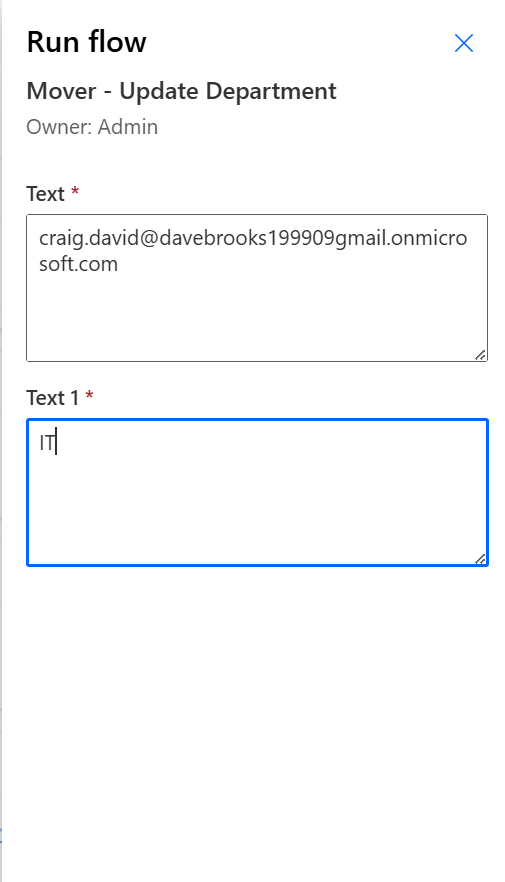
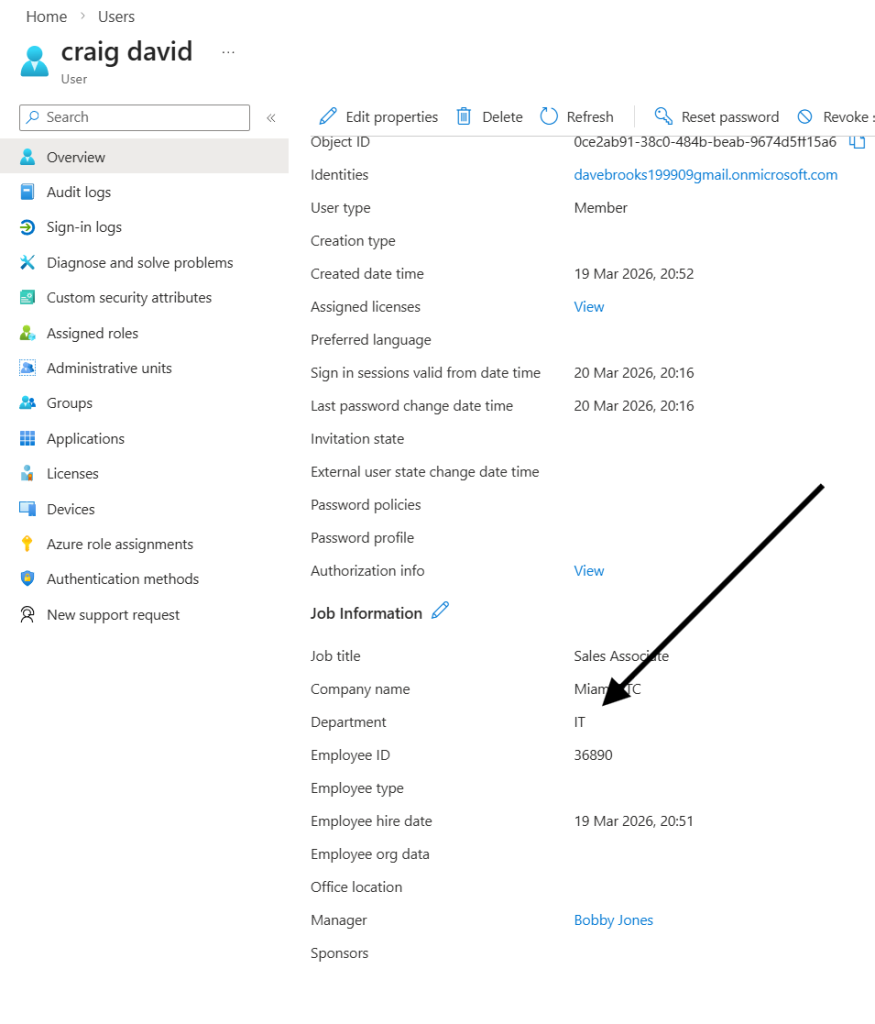
Craig also lost their sales group access. The power automate flow removes the sales access and the Lifecycle Workflow assigns the new department access.
I did this as the Lifecycle flows would get very complex if you decided to remove user access and assign. In an organisation setting this would mean creating heaps of flows that handle linear conditions
Admins would need to make 100s of flows just for moving departments and with growing business demand this just did not seem like the best approach.
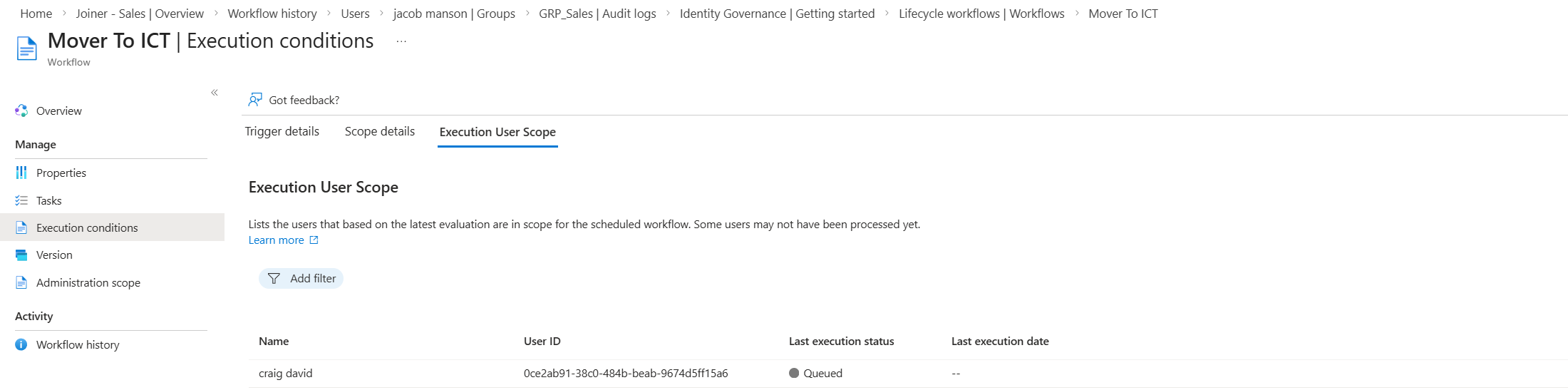
The lifecycle flow does a few tasks that automates a lot of admin overhead. It emails the manager stating craig is moving department, it then adds craig to the new team group (IT) it also removes all access package assignments so that no old department access is active.
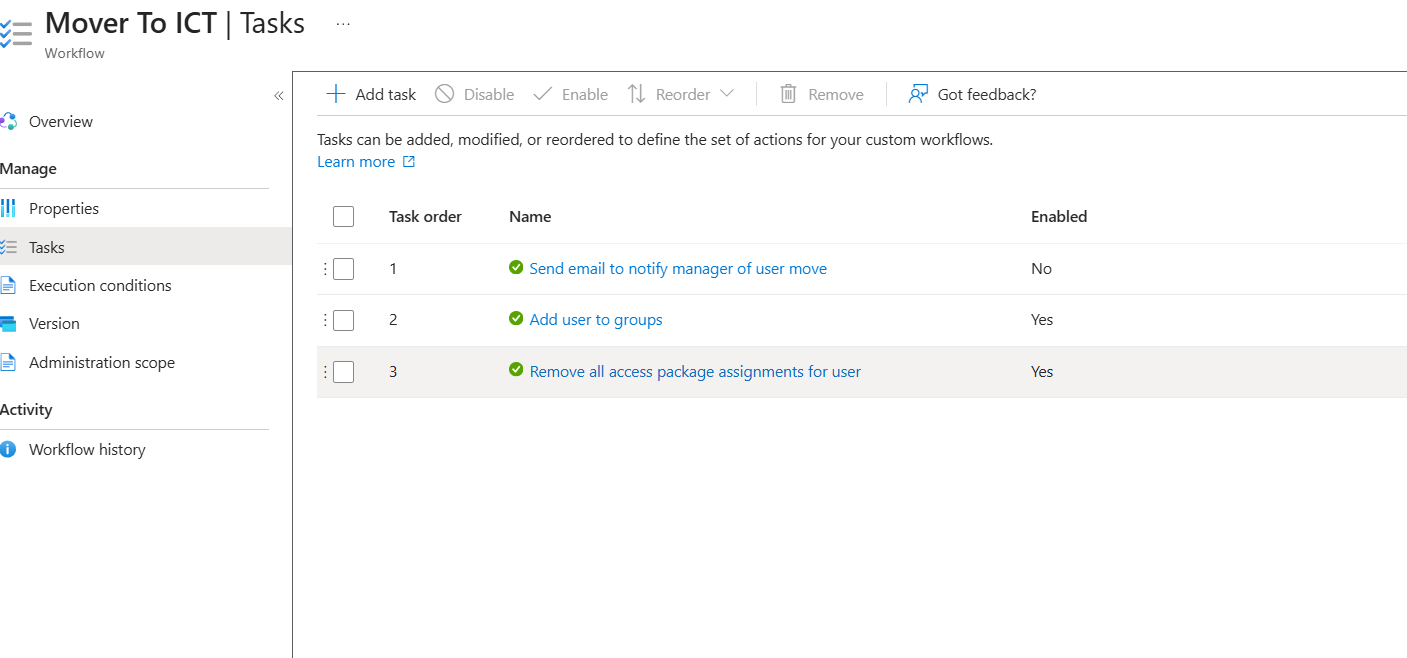
Removing All Access packages to me was the safer option. Lifecycle Workflow has limitations, naturally admins can remove specific access but there is no clear way to identify what user would have access to a specific package. In this instance the flow I have made detects if the user has had their department recently changed to IT. So for demonstration purposes I removed all access packages.
I realised that this would then remove the all staff access, prompting users to request for the specific access again which with time in a business setting would become frustrating. I added an auto assignment policy to the all staff access package. This means any user who meets the specific condition can auto assign to the group.
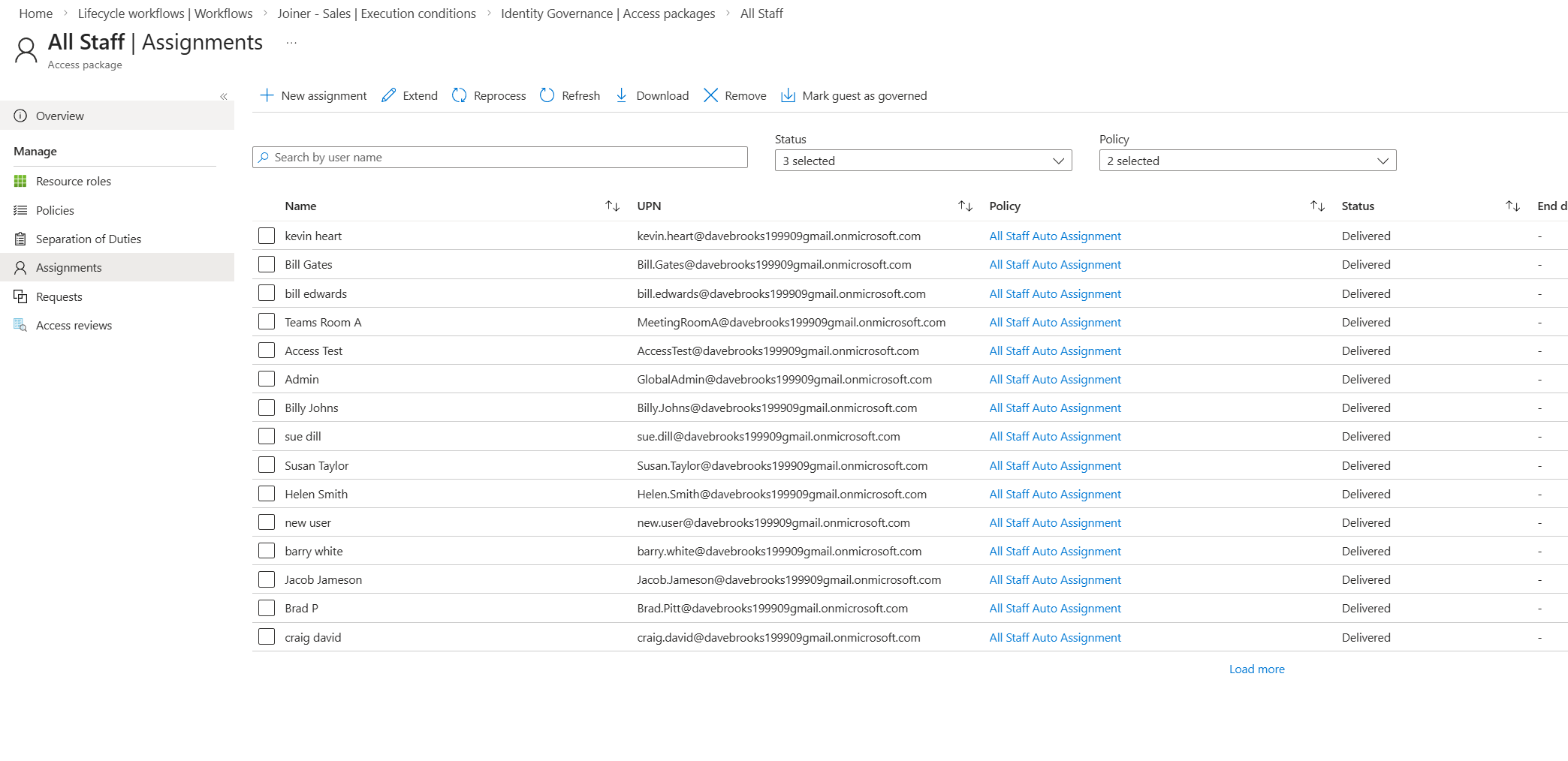
Above shows the Auto Assignment access package at work assigning to -UserType -Eq Member.
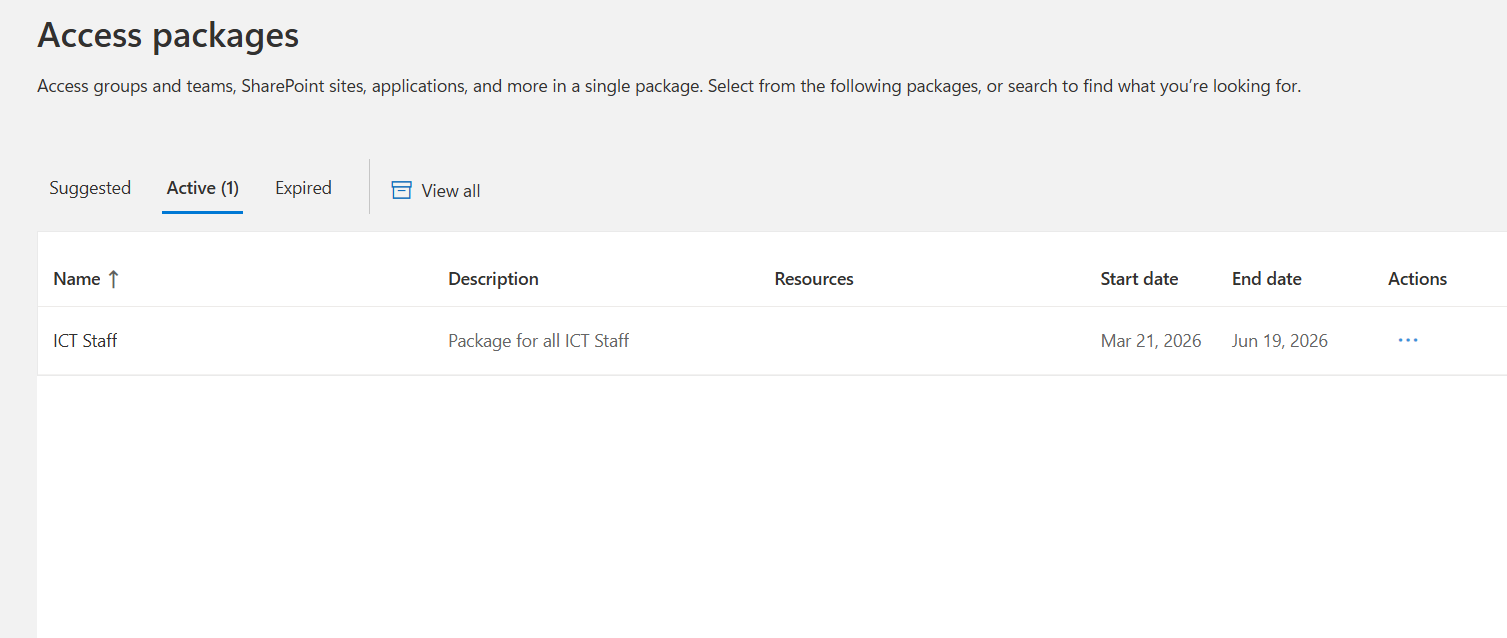
Since Craig moved team and had their sales access removed, below shows that now Craig has access to the ICT package and not Sales. It also shows that Craig had their access removed by the flow.
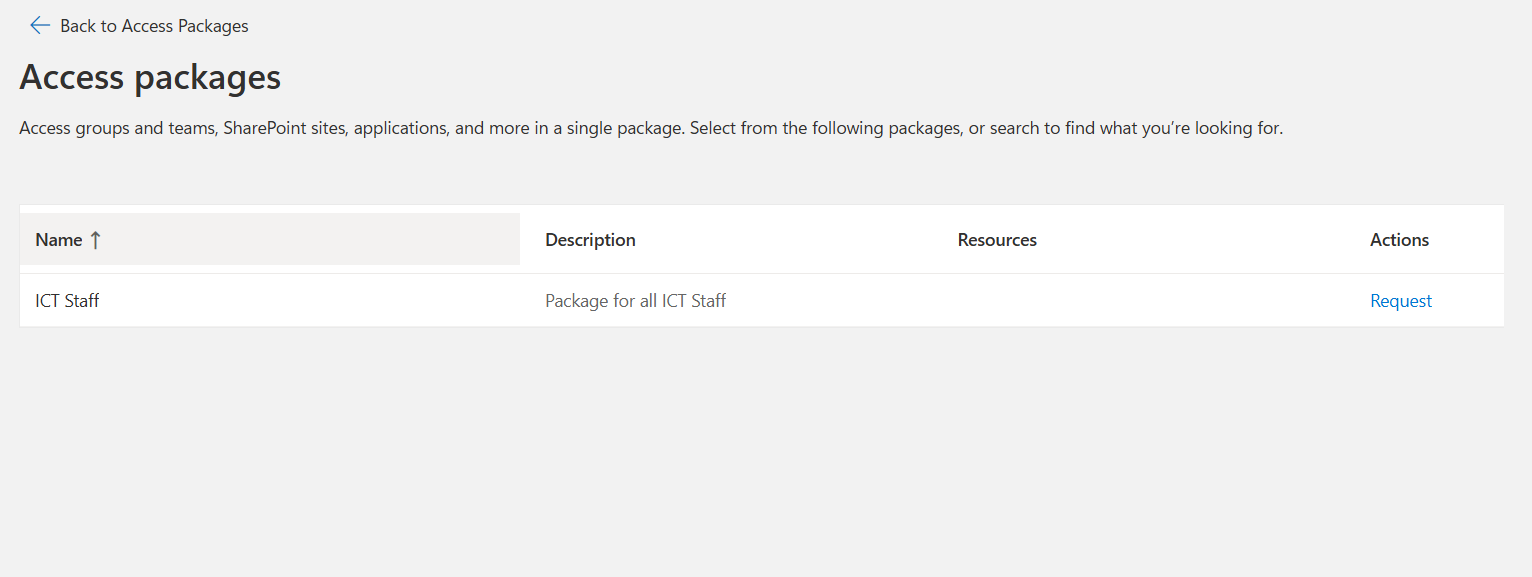
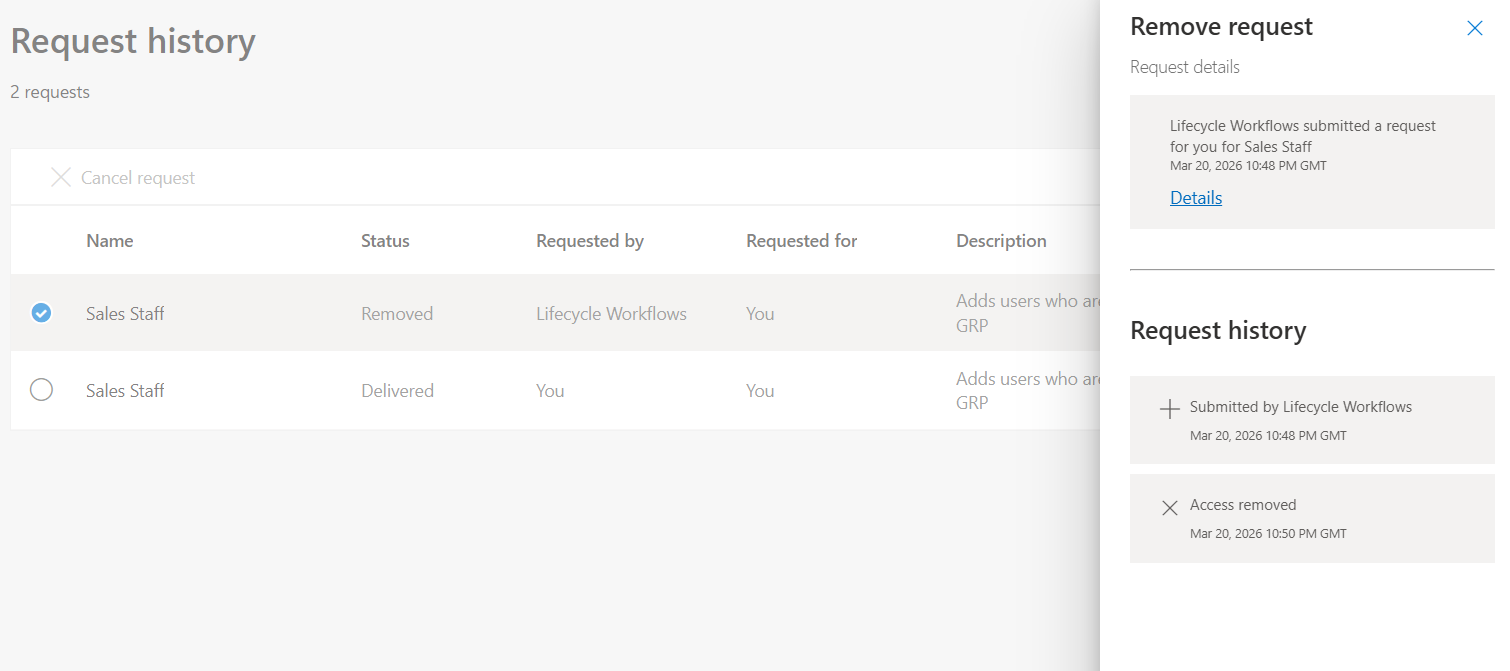
Now craig can start their new role in IT with the correct resources